

Previewing Changes (Before Going Live)
When you are editing a page or post in the Frame Block Editor, your changes do not automatically appear on the public website. To see what your page will look like before publishing:
At the top right of the editor, click the View Page Icon.
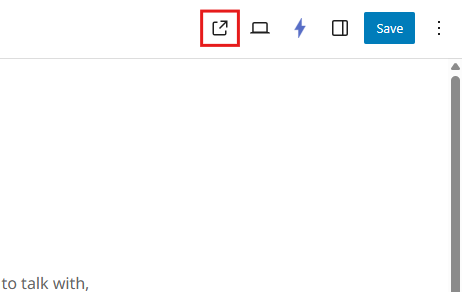
A separate tab will open showing what the page will look like.
Review the page layout, text, spacing, and formatting.
Why Use Preview?
Check formatting before sharing your page
Ensure images and text align correctly
Avoid publishing unfinished work
Viewing the Live Website (Public View)
Once you click Publish (new page) or Update (existing page), your changes become live.
To view the live version:
Option 1 — View Page Button
In the top right of the editor, click the View Page icon.
The live version will open in a new tab.
Option 2 — Via Dashboard
Go to Dashboard → Pages.
Hover over the page.
Click View.

Option 3 — Directly from the Website
Simply navigate to your website in your browser.
Use your site menu to visit the page you updated.
Tip: Private Browsing to Confirm Updates
Sometimes your browser may show an older cached version.
To ensure you're seeing the newest version:
Open the live page in Incognito / Private Window, or
Refresh using Shift +F5 (Or press the refresh button)