

TL;DR
Change your phone number, email, GPS coordinates, and address as needed.
Ensure your eAdventist information matches your site.
Let's Do It Together!
Step 1: Access Contact Information
Log in to your dashboard.
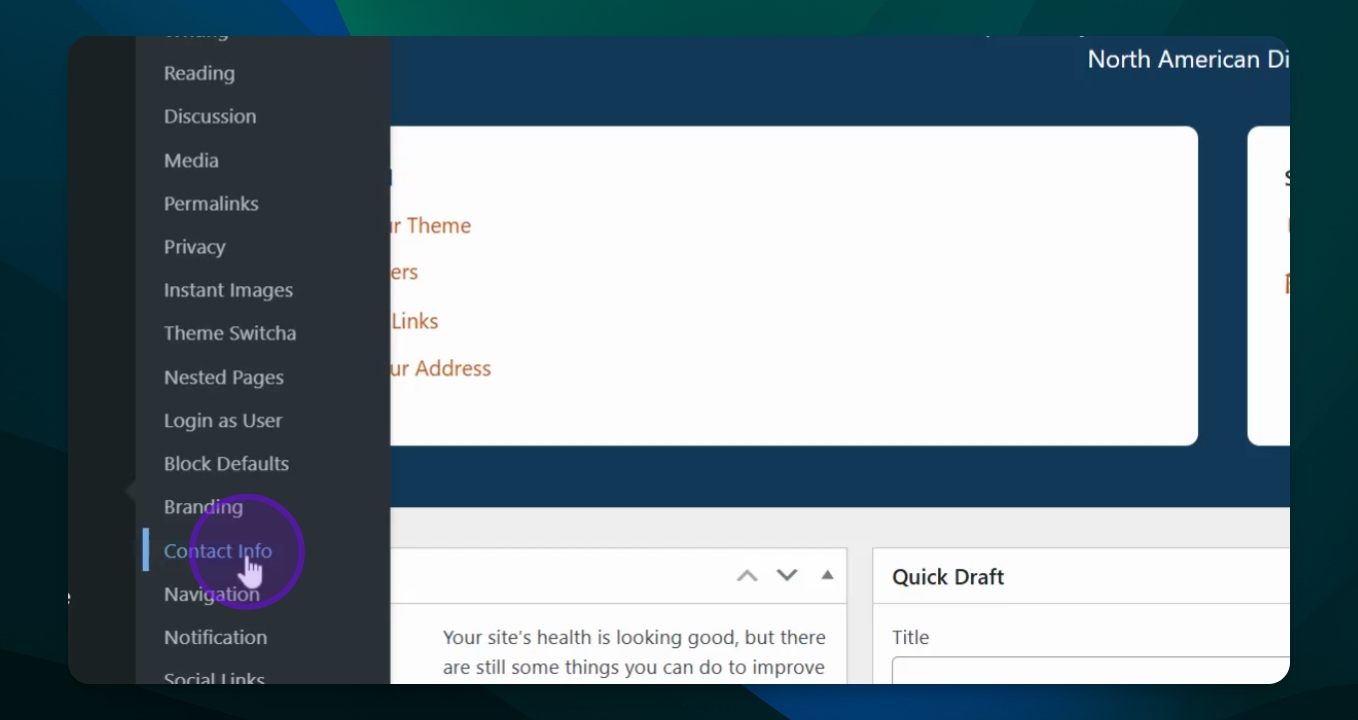
Scroll down to Settings and select Contact Information.
Ensure you have the correct permissions to make changes. If you are unable to access the Settings menu, contact a site admin.
Step 2: Update Your Details
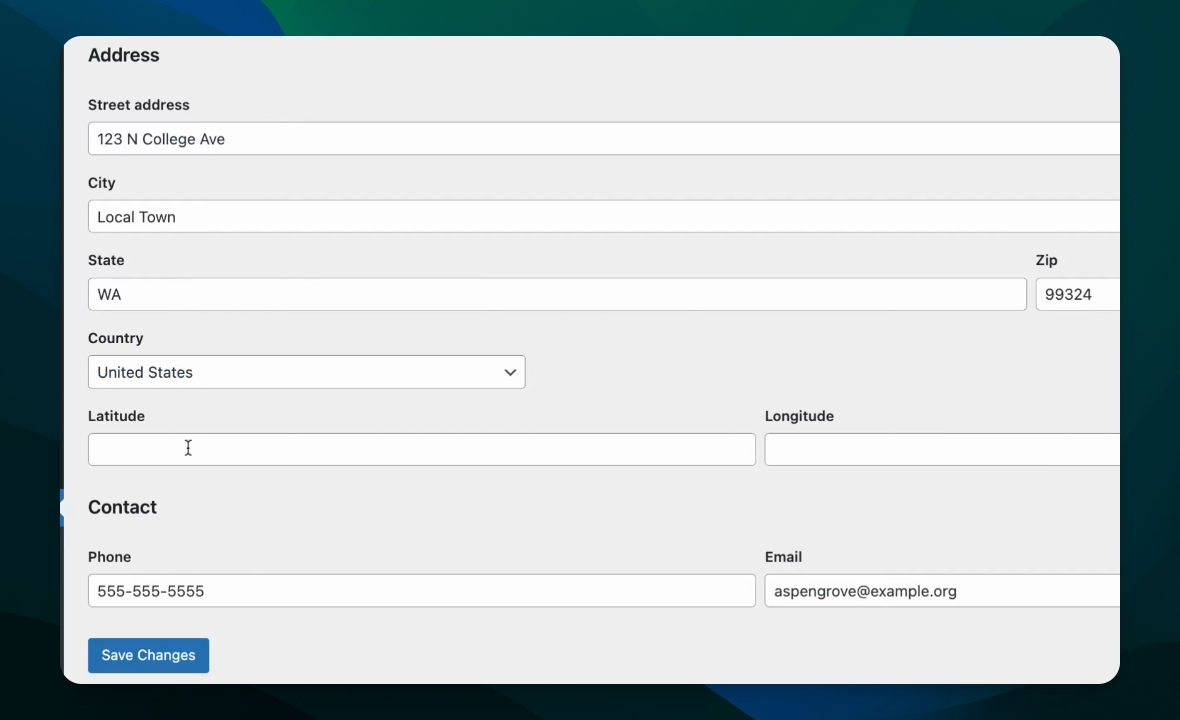
In the contact information window, update your phone number and email.
Fill in the address, state, and zip code if necessary.
Updating the relevant field information and saving the page changes what appears on the site, including the footer.
Step 3: Refresh Your Site
Go back to your site and hit Refresh to view updated information.
Step 4: Update eAdventist Information
Log in to eAdventist to ensure your contact information is consistent.
Contact a church clerk, secretary, pastor, or local conference if needed.
Step 5: Ensure Database Accuracy
Confirm that all information in eAdventist is correct as it helps to populate your website.