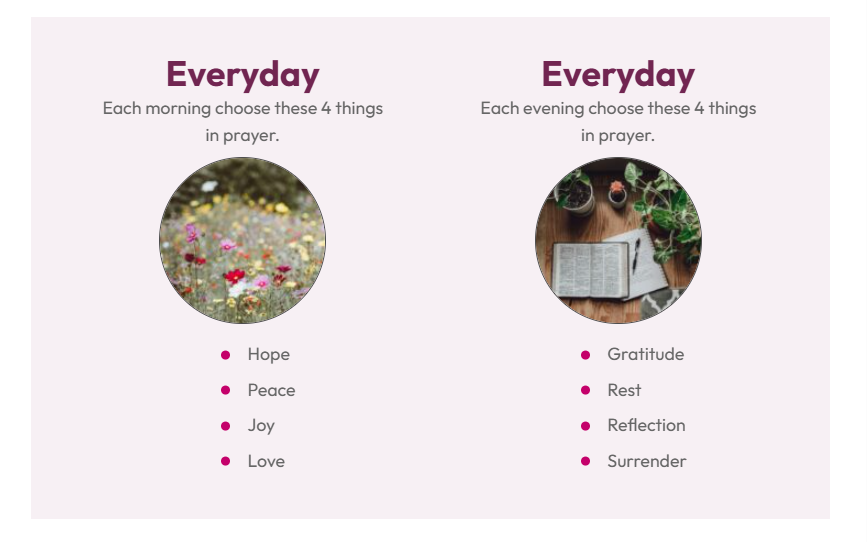
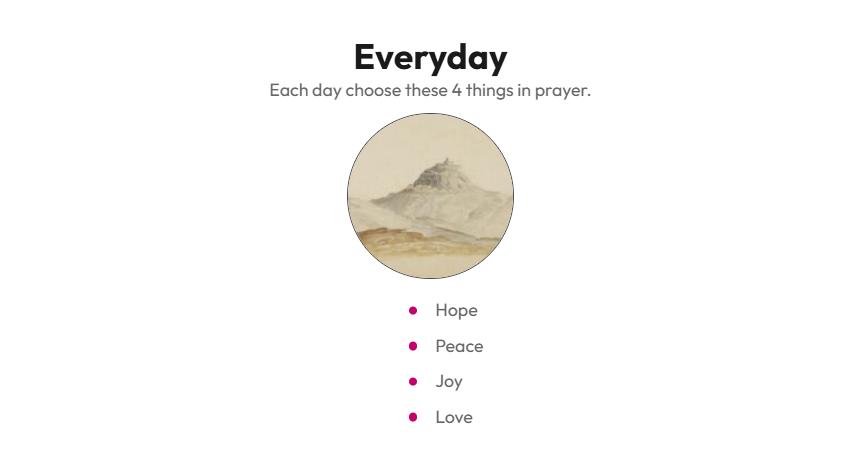
The Stack block in Frame helps you organize content vertically. You can use it inside columns or on its own to group elements like images, headlines, paragraphs, buttons, and lists. Let's look at the steps in this example we are adding Stack Blocks in a Column Block for structure.
Step 1: Add a Stack Block
Add a new Stack block to your page where you want to start be either the Block Inserter menu or by the plus sign on the right.
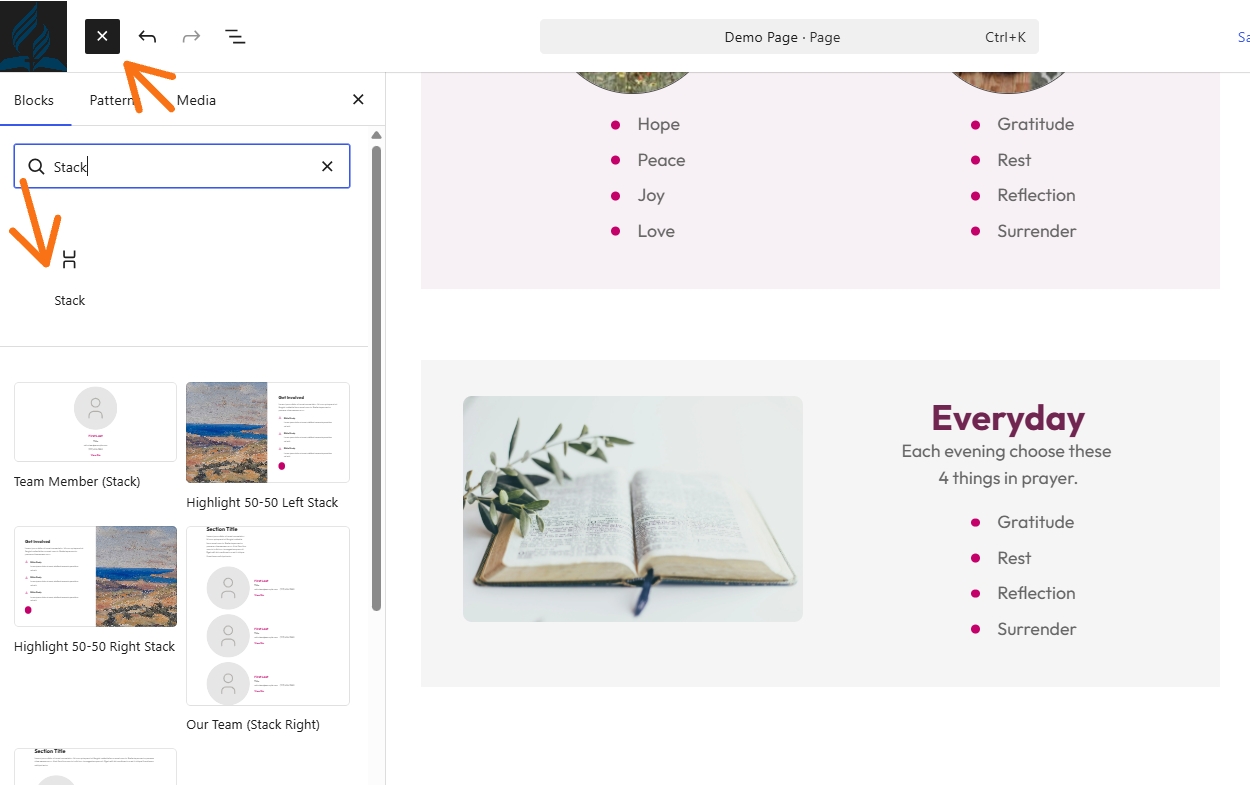
Step 2: Insert a Stack Block
Click the plus sign inside the column to add a Stack block. The Stack block will appear with a plus sign, indicating you can add more blocks inside it.
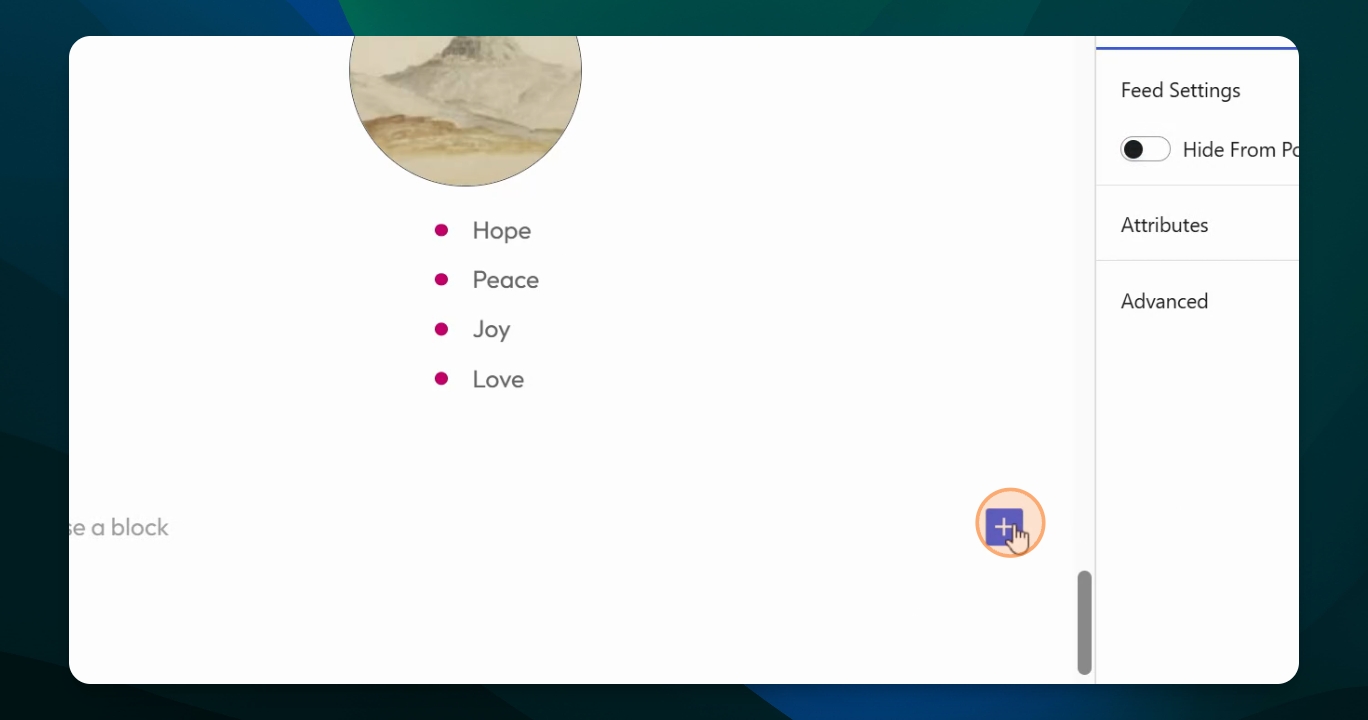
Step 3: Select First Block Type
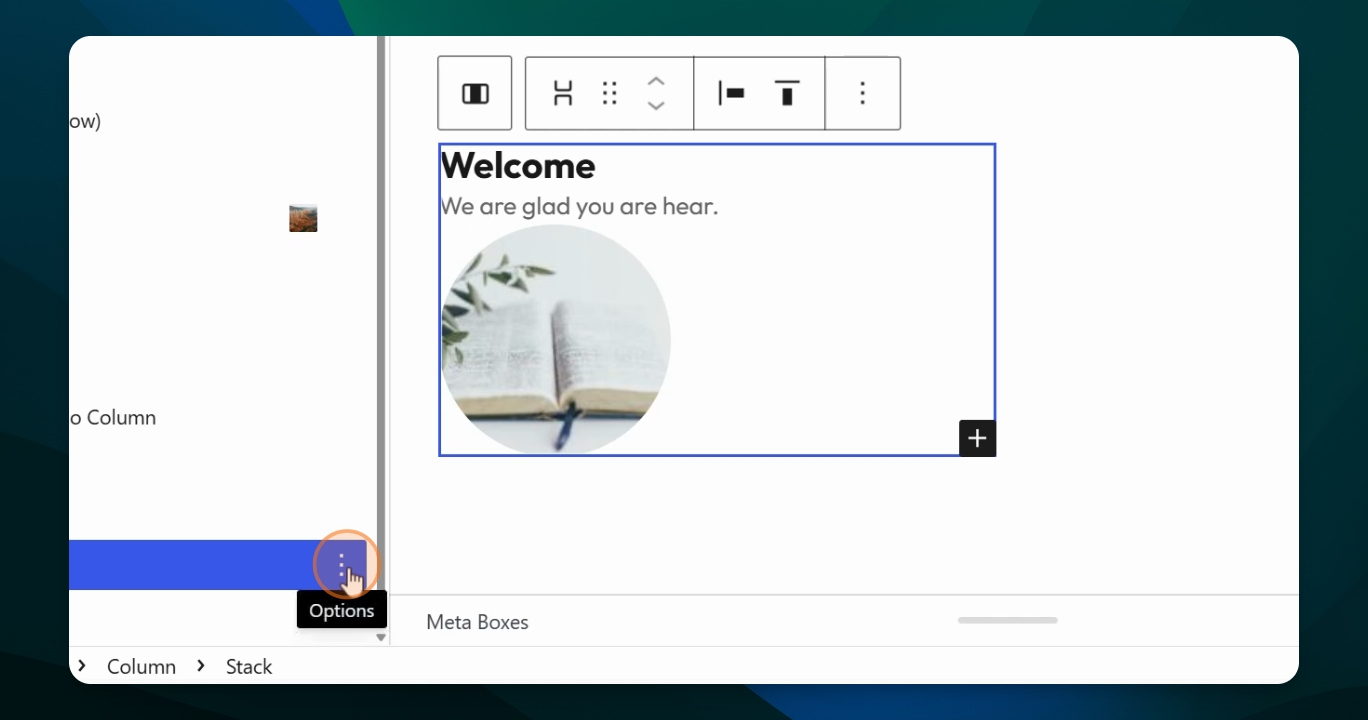
Click the plus sign inside the Stack block and add in the example a Heading block. Adjust the heading size as needed, then type your heading text (e.g., welcome) and press return.
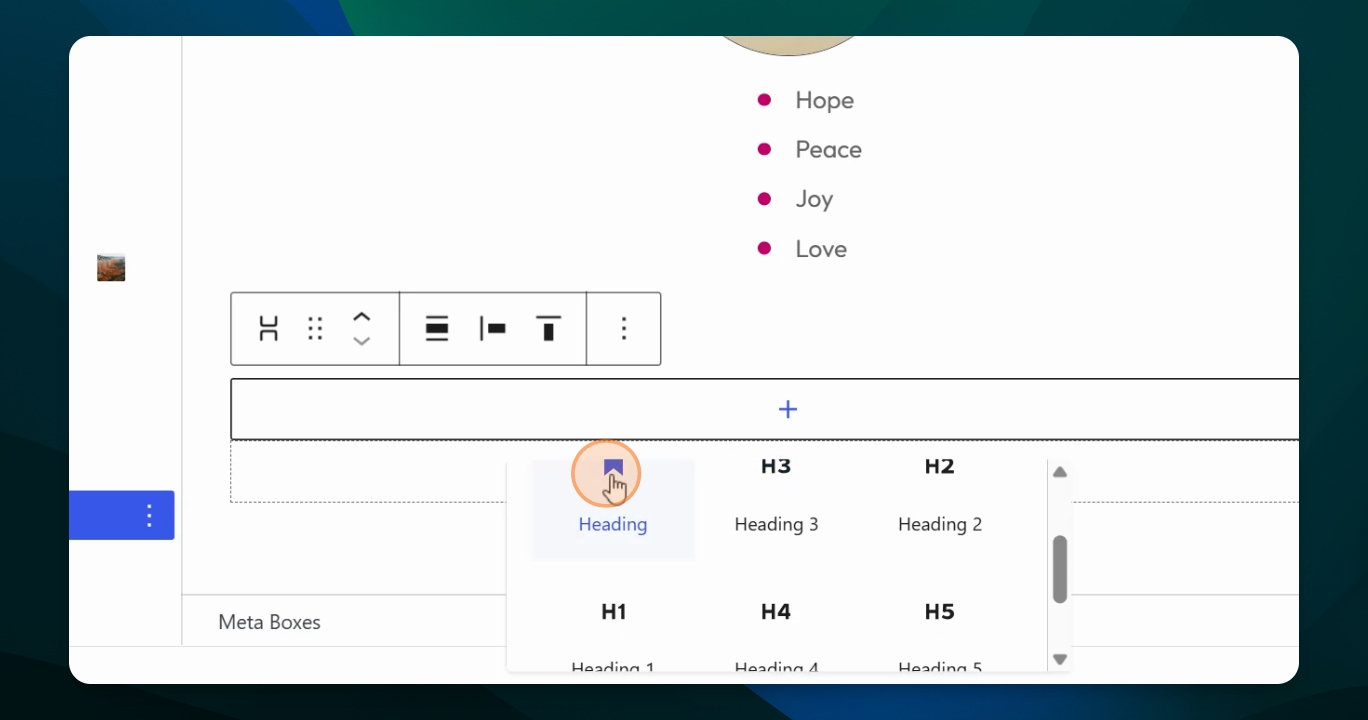
Step 4: Add Additional Blocks
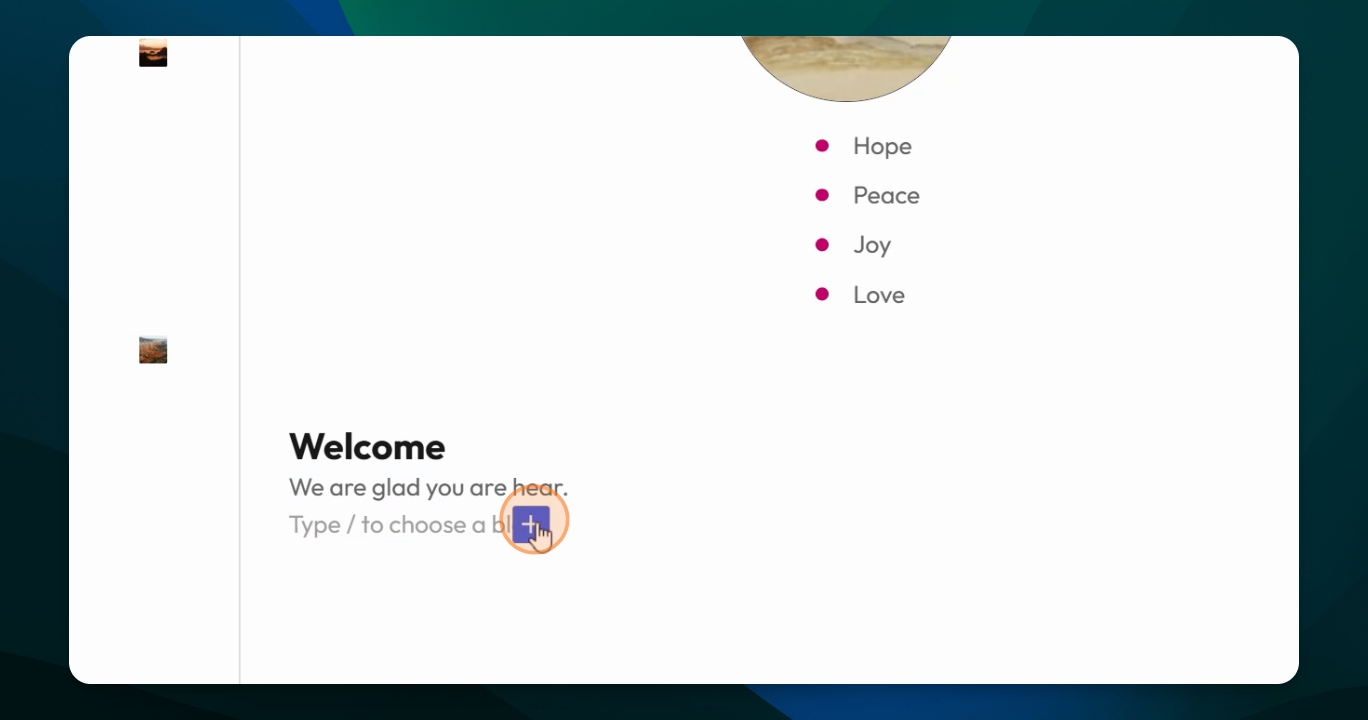
For this example we added a Paragraph block below the heading and enter your desired text.
Add another block, so we want an image to add click the plus sign again and select Image block. Choose an image from your media library. Adjust the image settings, such as turning off the caption and resizing it to thumbnail the default shape is square.
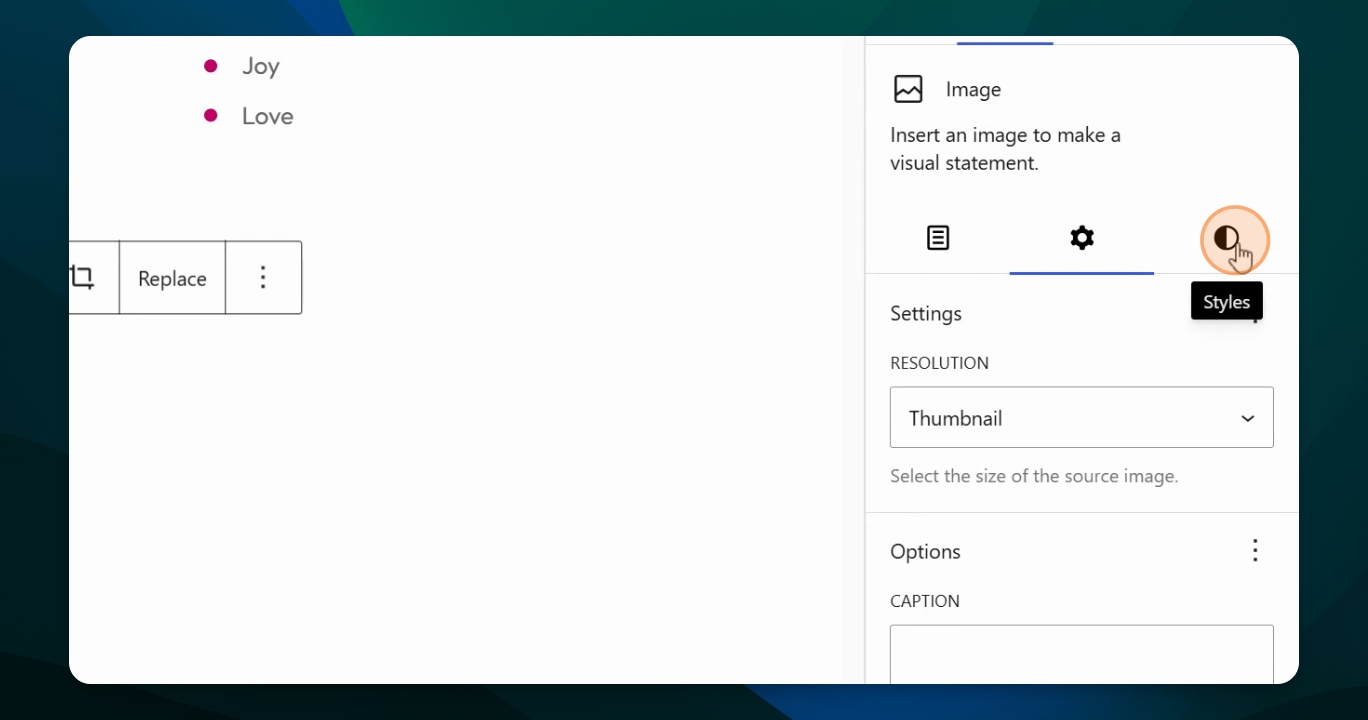
To make the image a circle, go to styles and set the radius to approximately 75px. The image will now appear circular and centered in the stack block.
Step 5: Add Column Block
If you want to organize stacks within columns, add column block after the Stack block you created. Choose the 50/50 option to create two equal columns.
Step 8: Move Stack into a Column
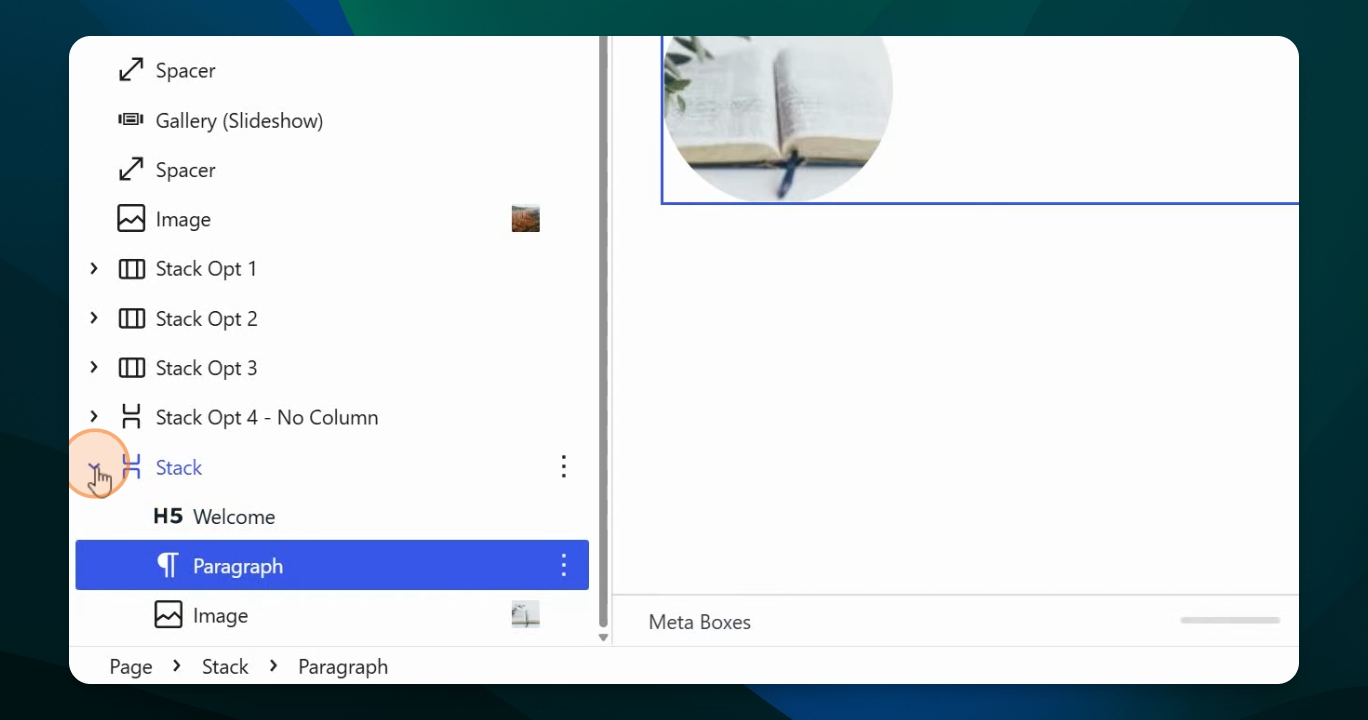
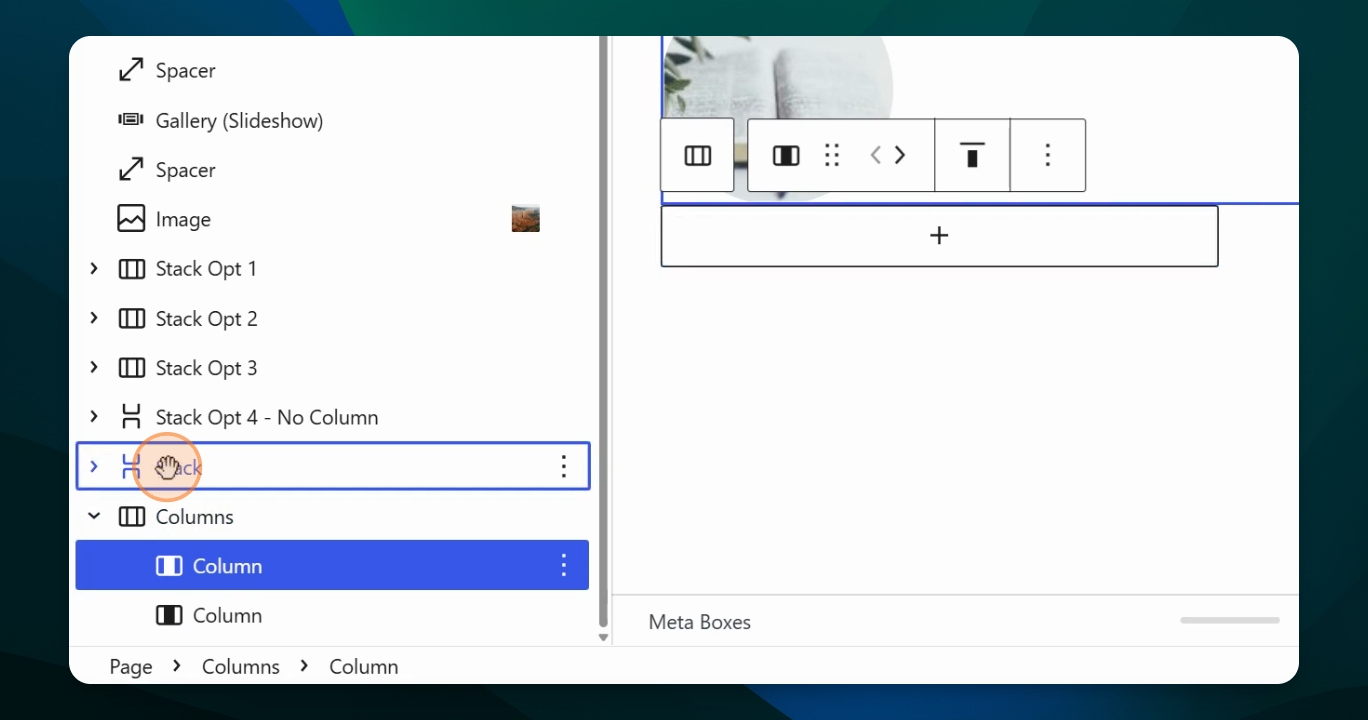
With the Document overview menu open, drag the stack block you created into the first column so it appears underneath it.
Step 9: Duplicate and Organize Stacks
Duplicate the stack block to create another one. Move the duplicate into the second column. Now you have stacks within columns, and you can continue adding more blocks to each stack as needed.
Step 10: Customize Each Stack
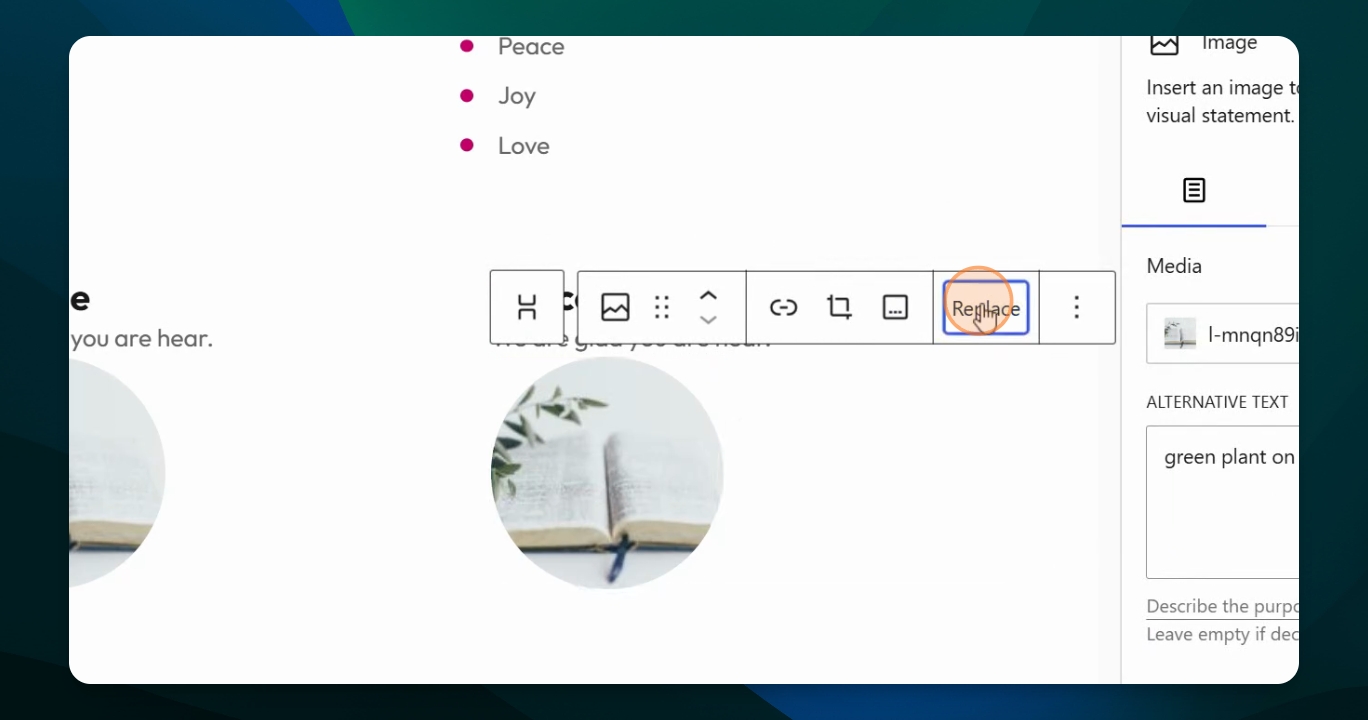
Replace the photo in each stack to make them unique. Update the heading and paragraph as desired. You can also add more columns or duplicate stacks within a column to achieve your preferred layout.
This is how you can use the stack block in Frame to organize information vertically and create visually appealing layouts.
Sample of Layouts