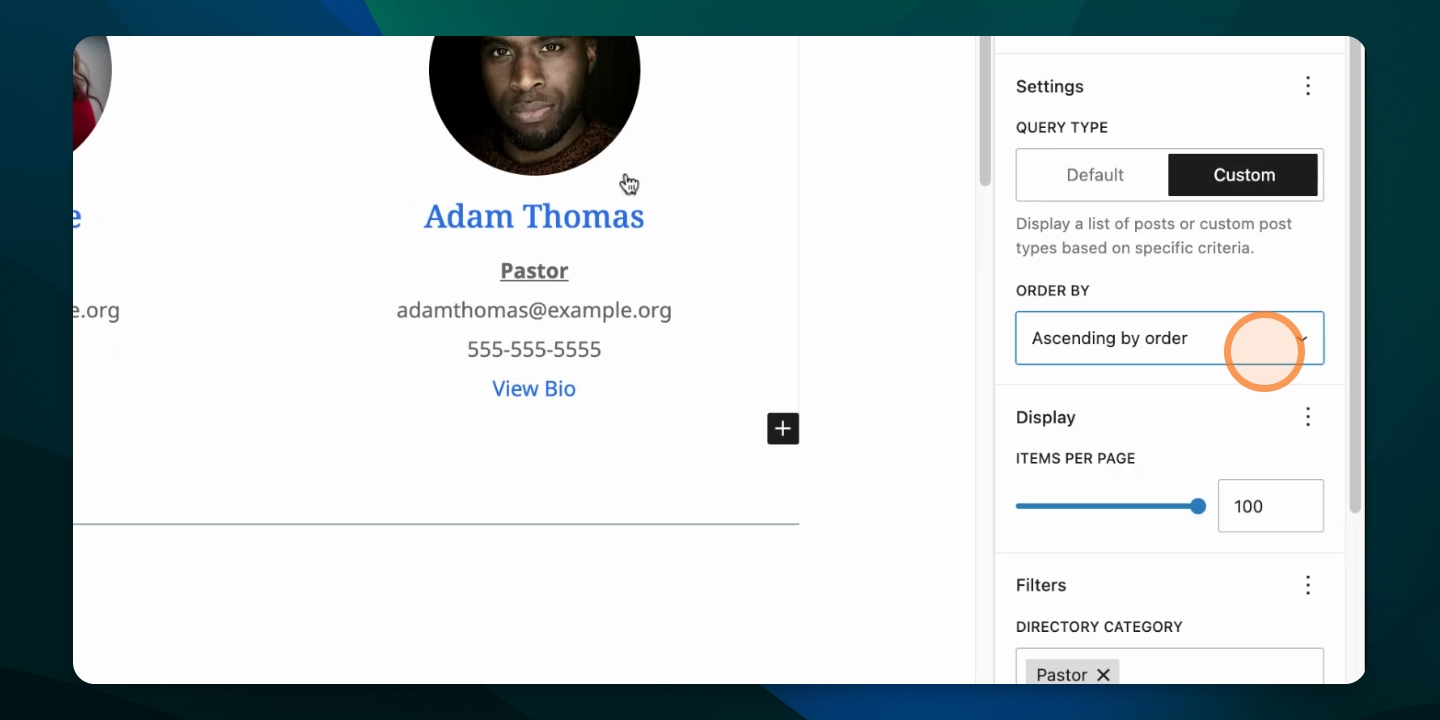
In this tutorial, you will learn how to set a custom display order for items in a directory. Automated options include ordering alphabetically or by date created, however those options may not make the most sense for your content. Let's look at the steps for setting a custom order:
TL;DR
From your dashboard, find Directory and view all listings.
Hover over the name of the items you wish to order, and click Quick Edit.
Set the Order field to a number that designates the order for items to display.
Return to the page which includes the Directory Listing.
Set the Directory Listing to be ordered by Ascending by Order.
Step 1: Go to Directory
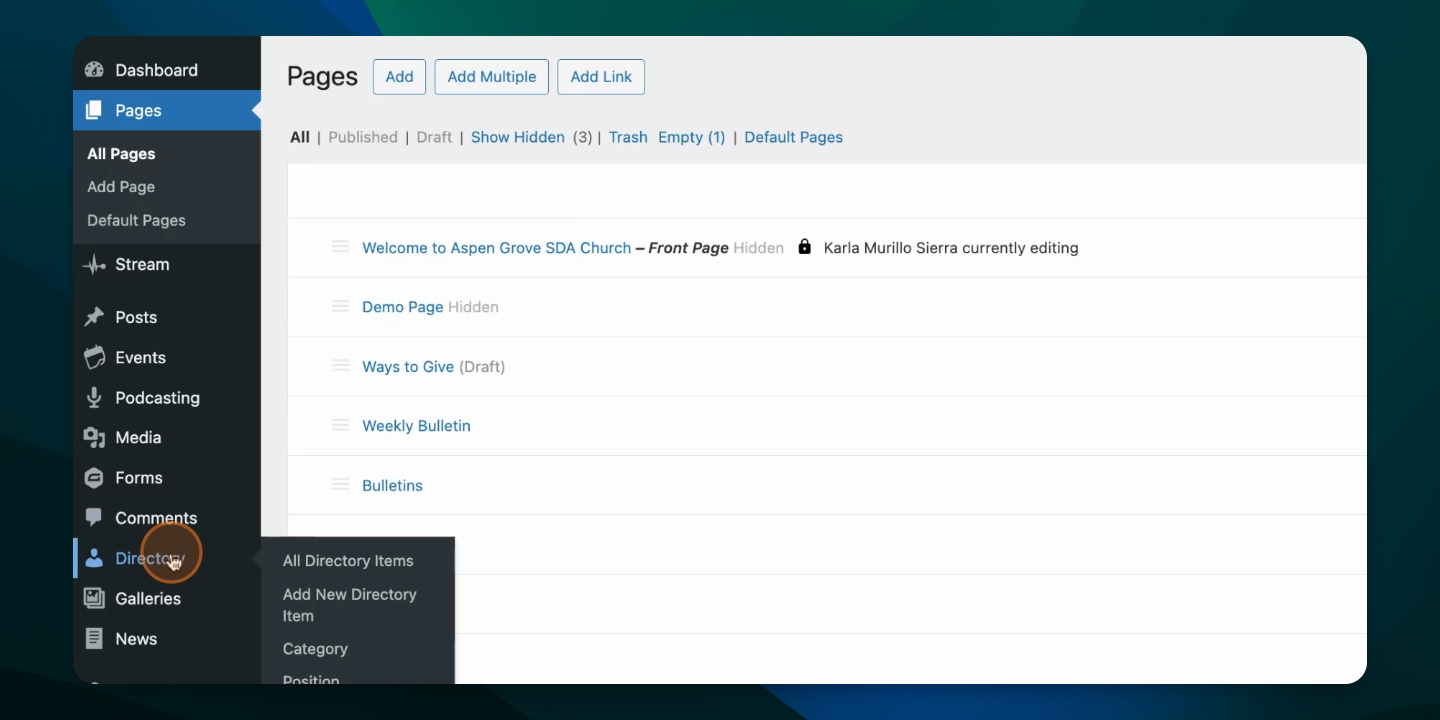
Navigate to your dashboard and go to Directory.
Step 2: Find Directory Item to Edit
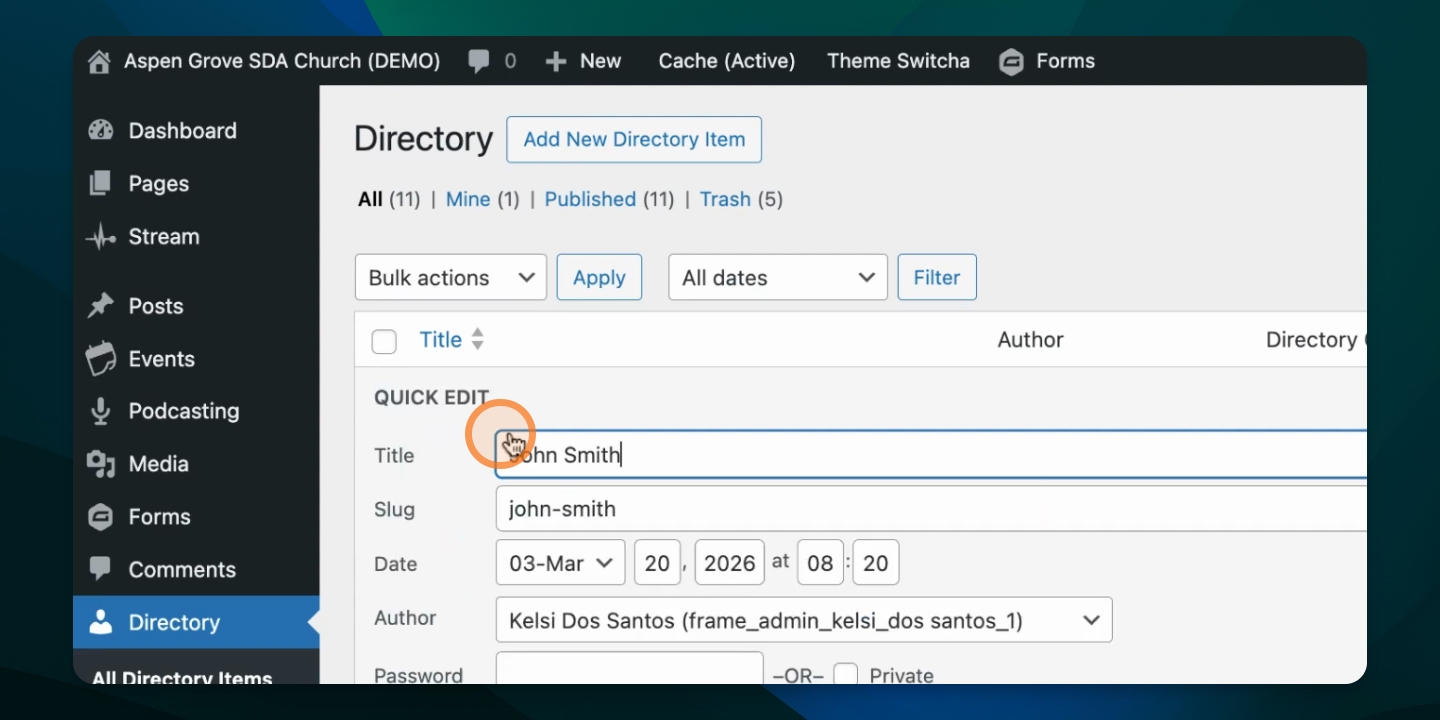
Hover over the person whose order you wish to set, and click Quick Edit.
Step 3: Set Order Field
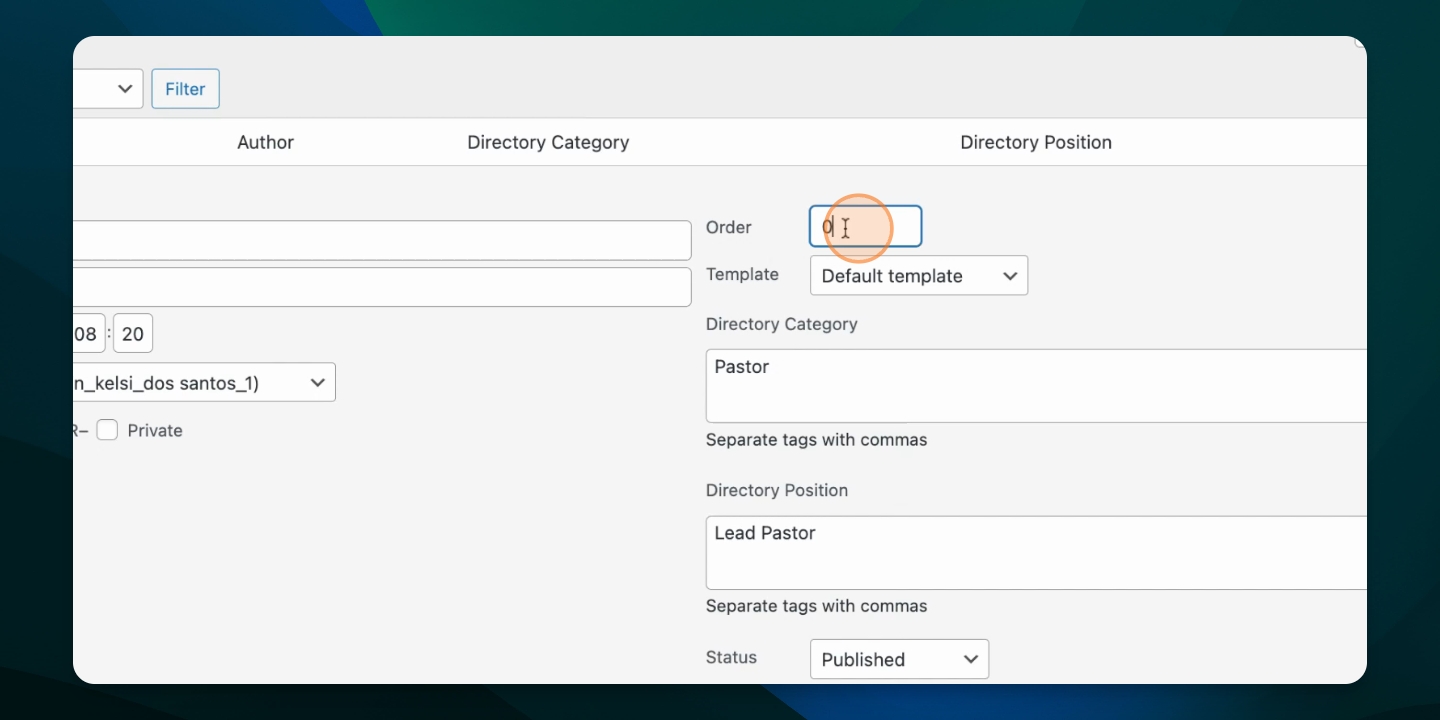
For each person, set the order field to the number order you want them to display in.
Leave some numbers unassigned to facilitate easier future adjustments. (ie. choose 1, 5, 10, 15)
Step 4: Go to Page With Listing
Navigate to the page that displays the Directory Listing.
Step 5: Update Directory Listing
Select the directory listing and change the setting to Ascending by Order. This will display the people in order based on the numbers you set for each of them.