

In this guide, you'll learn how to rearrange your pages and organize them effectively in your dashboard. Let's look at the steps:
Step 1: Open the Pages Section
From your dashboard, click on Pages to view your list of pages.
Step 2: Rearrange Pages by Drag and Drop
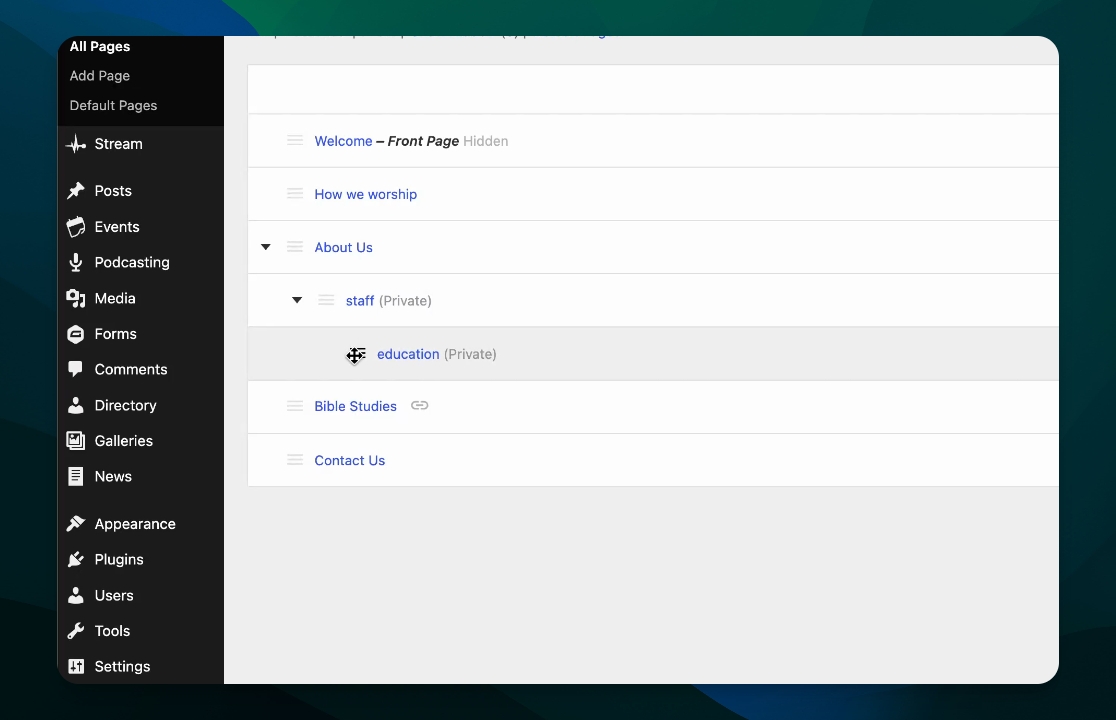
To move a page, click and hold the page you want to move, then drag it to the desired position in the list.
Step 3: Create Child Pages
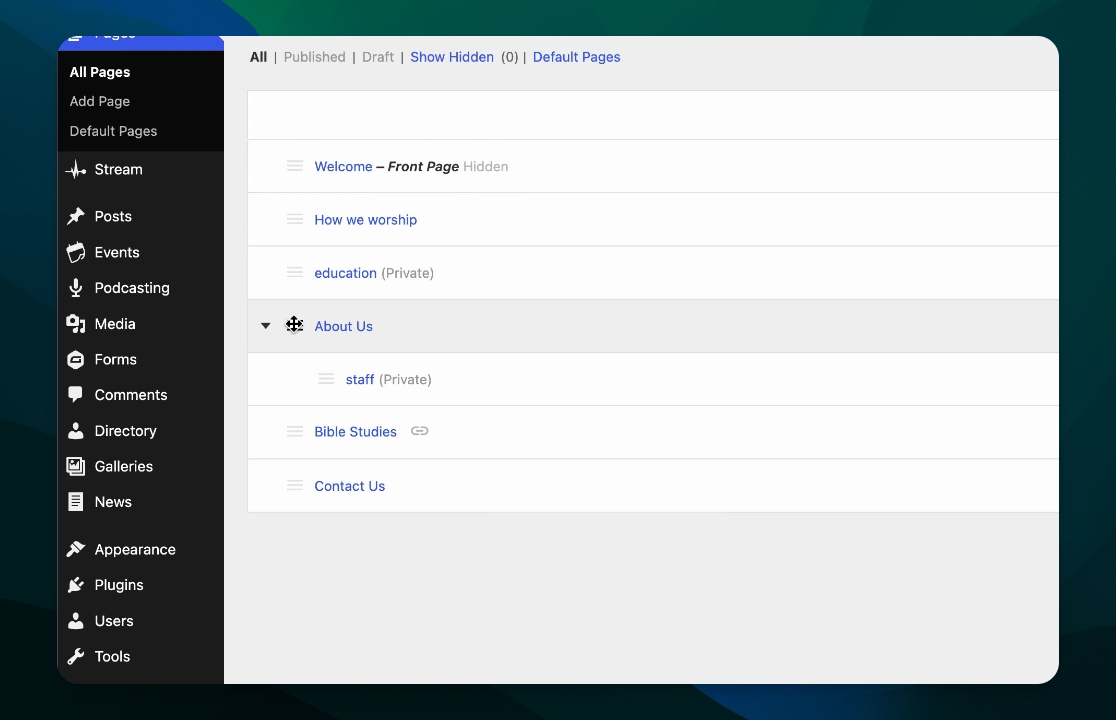
To nest a page under another, drag the page slightly to the right under the parent page. This will create a child page relationship.
Step 4: Expand and Collapse Sections
Use the small carrots next to pages to expand or collapse sections, making it easier to organize your page structure.
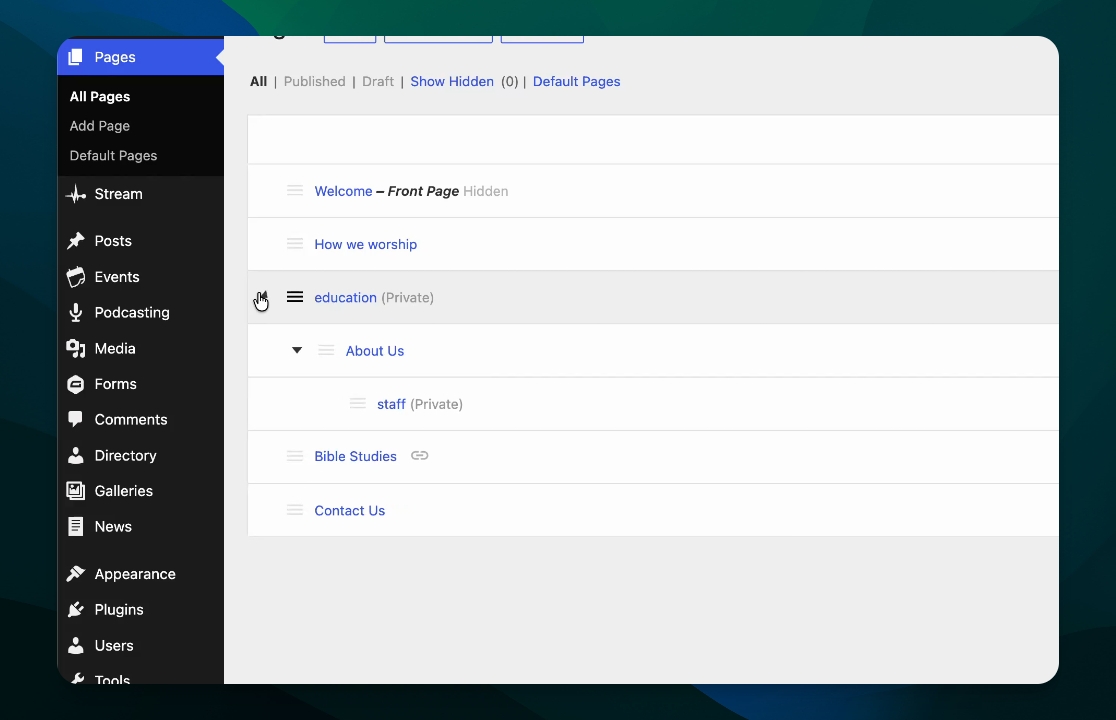
That's how you manage and organize your pages in the dashboard.