

TL;DR
1
Insert media block
Go to your page and insert a media block for the image.
2
Select your photo
Access the media library and select the desired photo.
3
Edit caption
Remove or change the caption as needed.
4
Edit image
Access attachment details and edit the image as required.
5
Save and view changes
Save your edits and the page to see the updates.
Let's Do It Together!
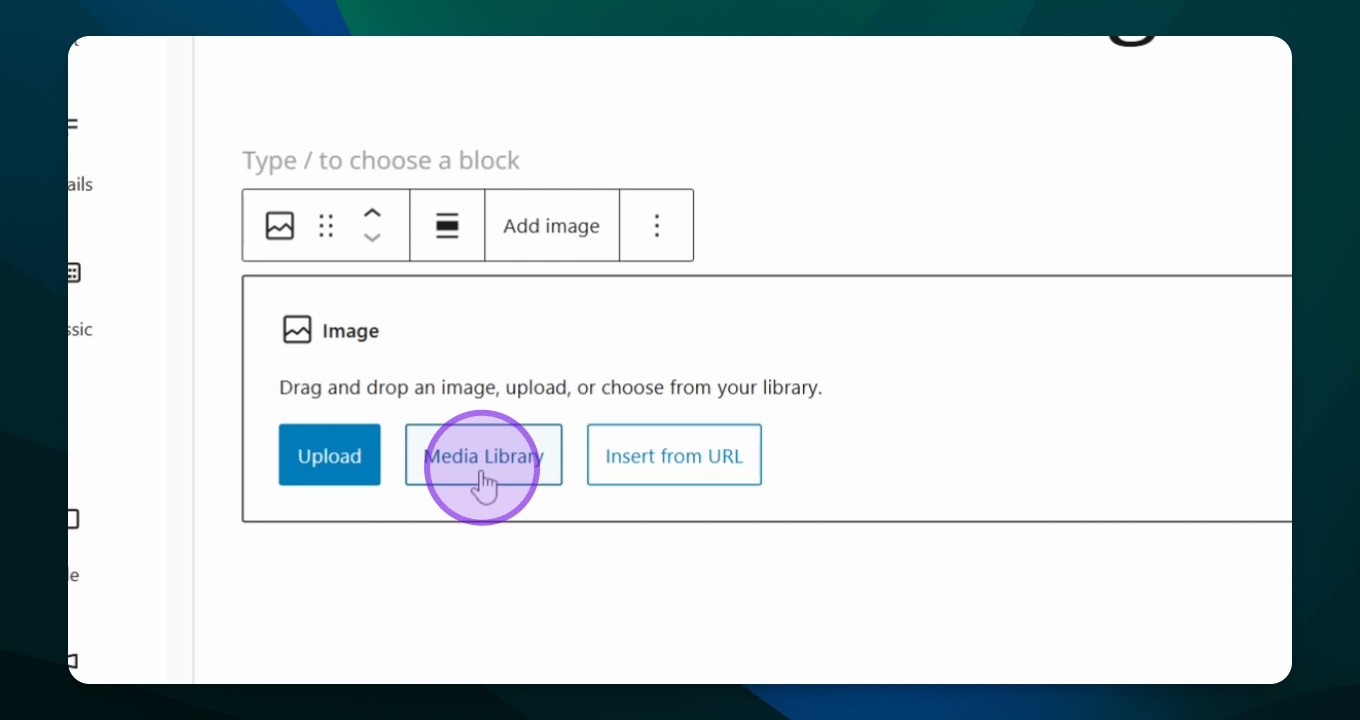
Step 1: Insert a Media Block
Navigate to the page where you want to insert the image.
Click to insert a media block.
Select add an image.

Step 2: Choose Your Photo
Access your media library.
Select the photo you wish to edit.
Click select to populate it onto your page.
Your photo will now appear on the page.
Step 3: Edit the Caption
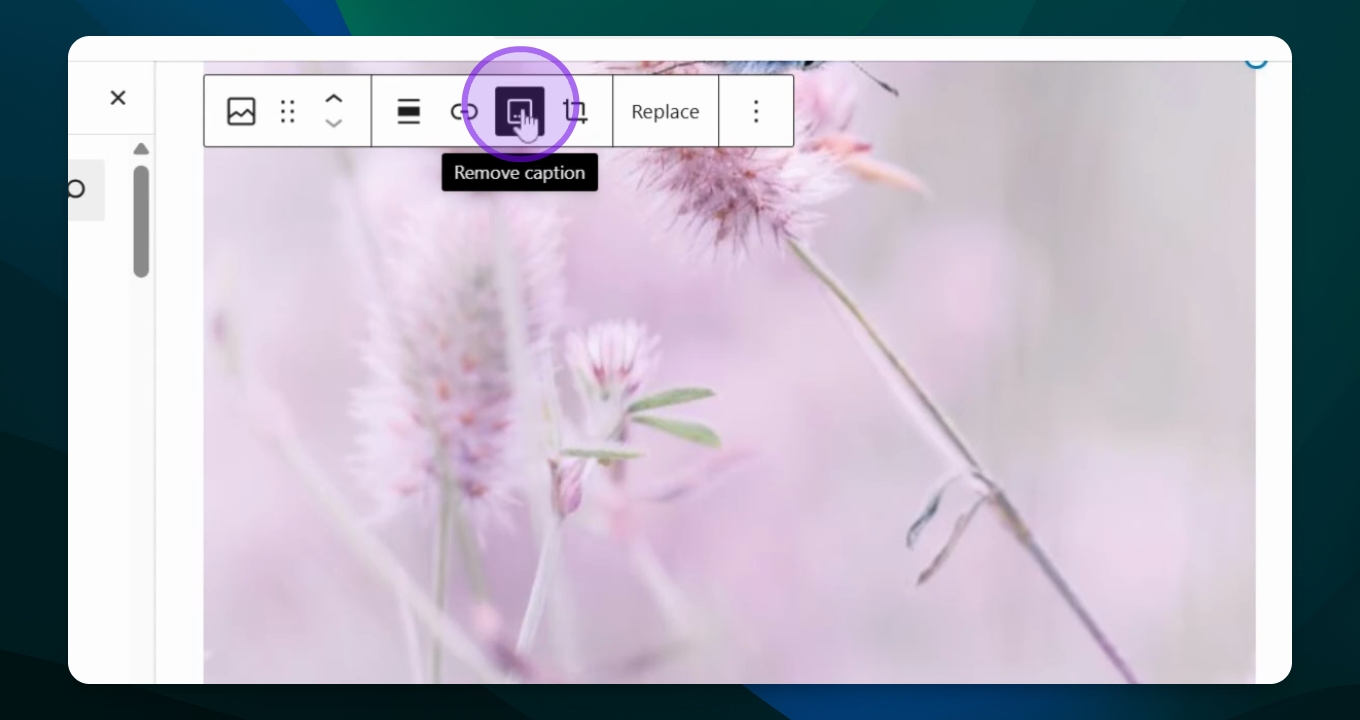
If a caption appears, you can choose to remove it.
Click remove caption to hide it.
Step 4: Access Image Editing Options
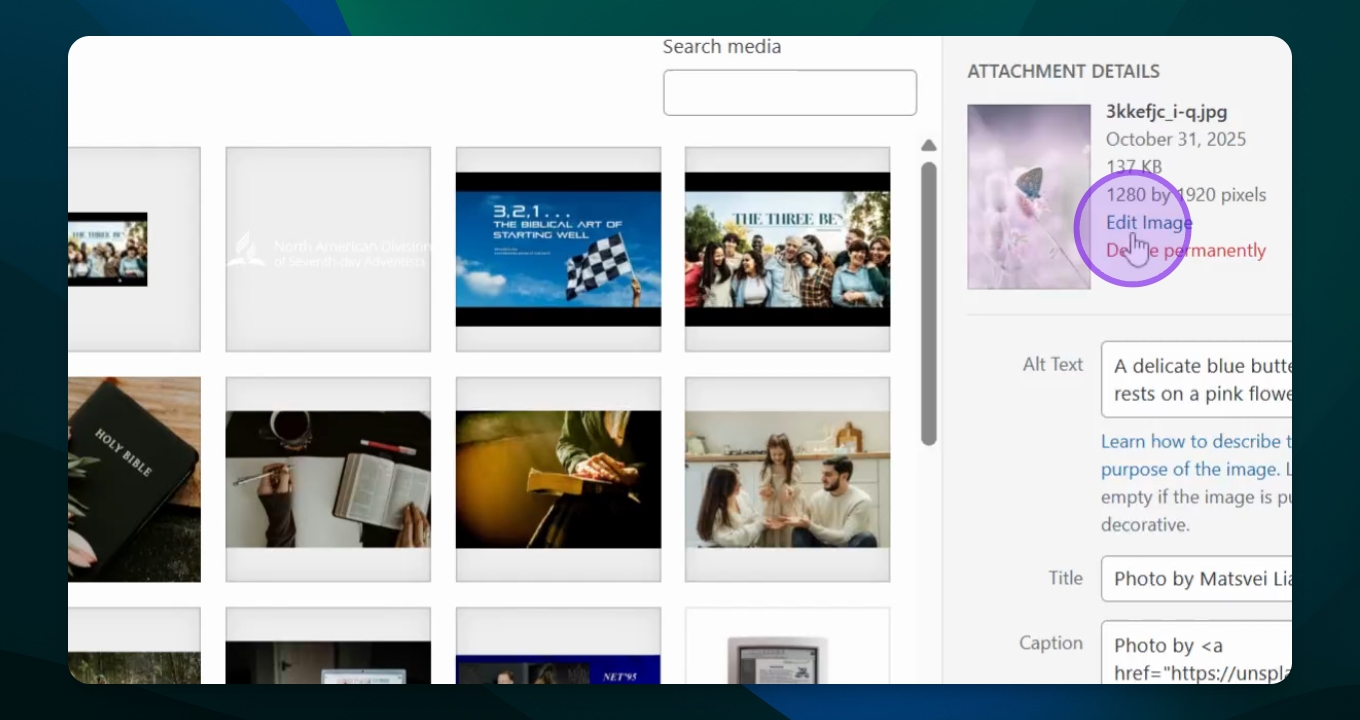
In the right menu, click attachment details.
Find the Edit image option in blue.
Step 5: Apply Edits
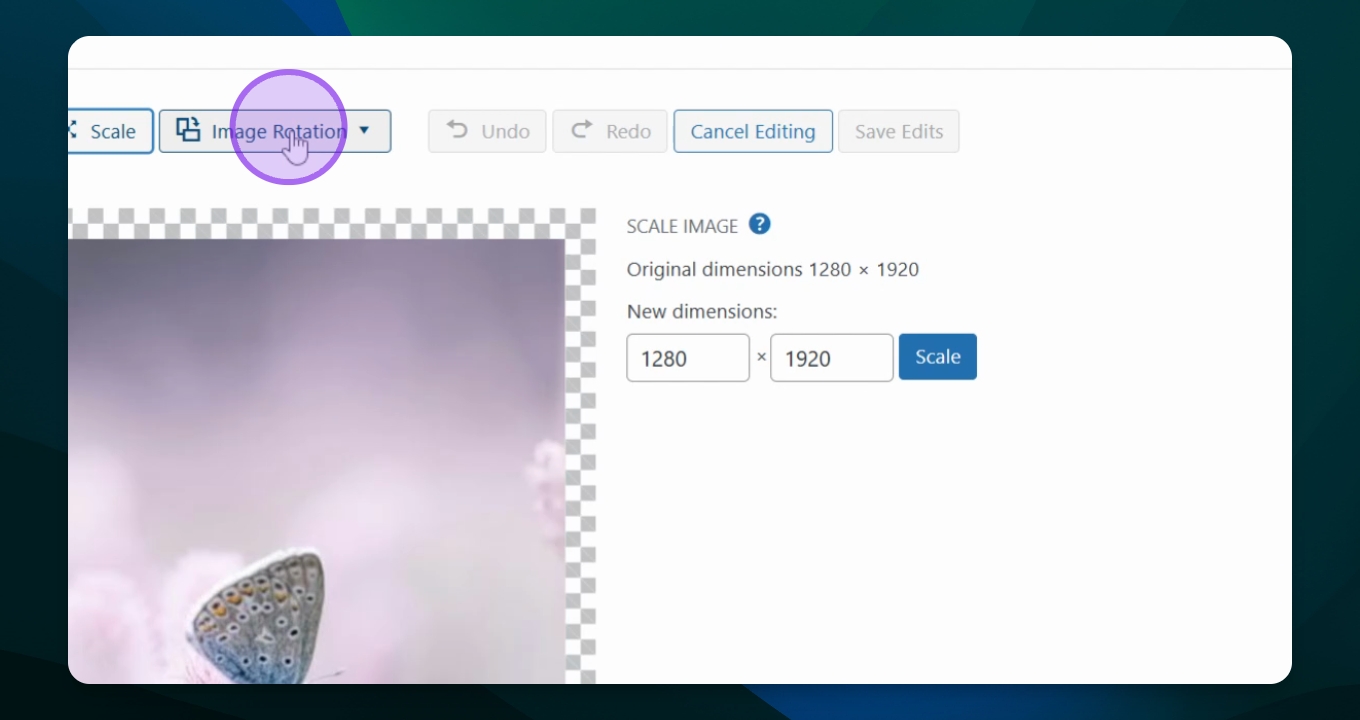
You can choose to crop, scale, rotate, or flip the image.
Click to flip horizontal to change the orientation.
If cropping, select the crop option and use the toggles to adjust.
Click apply crop when done.
Your image will now reflect the changes made.
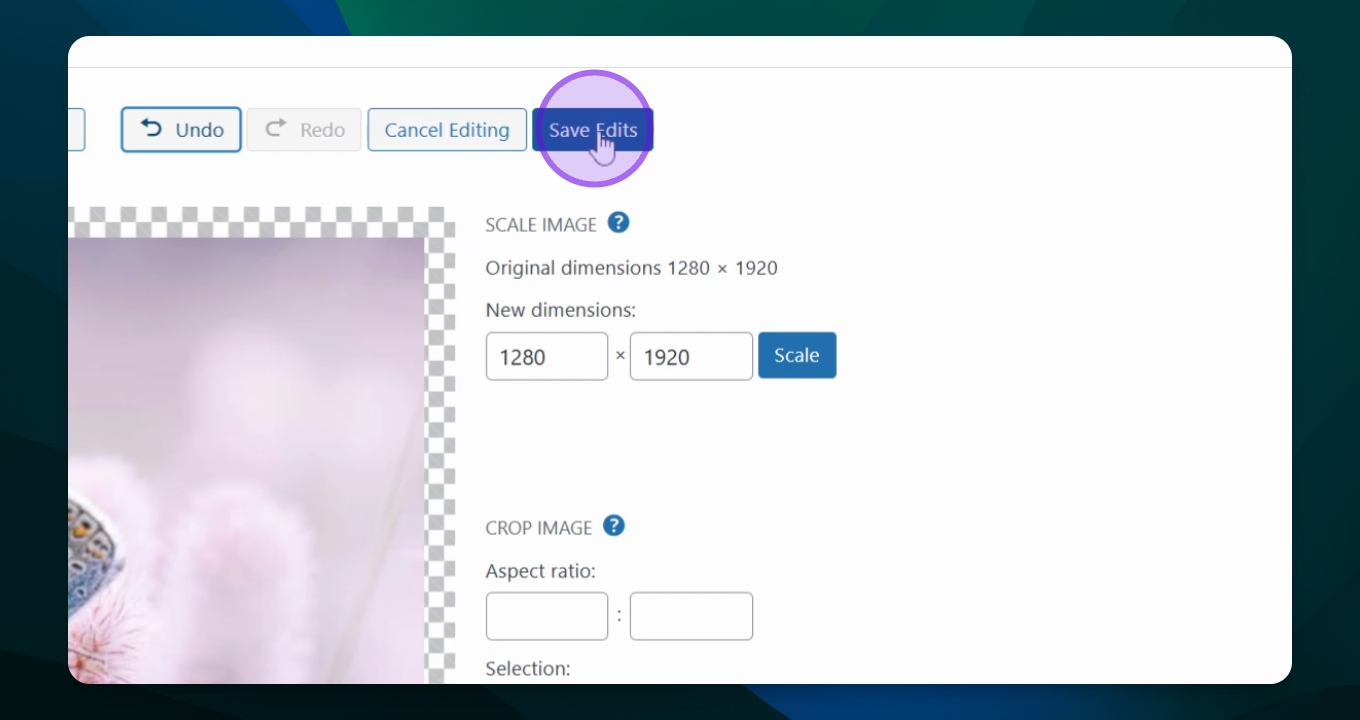
Step 6: Save Your Changes
If satisfied, click save edit to finalize.
Ensure to save your page to view the changes.
Troubleshooting
Image not appearing
Ensure you clicked 'select' after choosing the image.
Changes not saving
Make sure to click 'save edit' before leaving the page.
FAQ
Can I revert changes?
Yes, you can use the undo option before saving.
What if the image is too large?
Use the scale or crop options to resize it.