

Thrive is a free online platform that helps ministry teams track and connect with visitors from first contact to discipleship. If you have a Thrive account set up, you can create forms on your Frame website that automatically connect with your Thrive data. Let's look at the steps:
Step 1: Log Into Frame Dashboard
Log into your Frame dashboard and find the page where you want to display the new form.
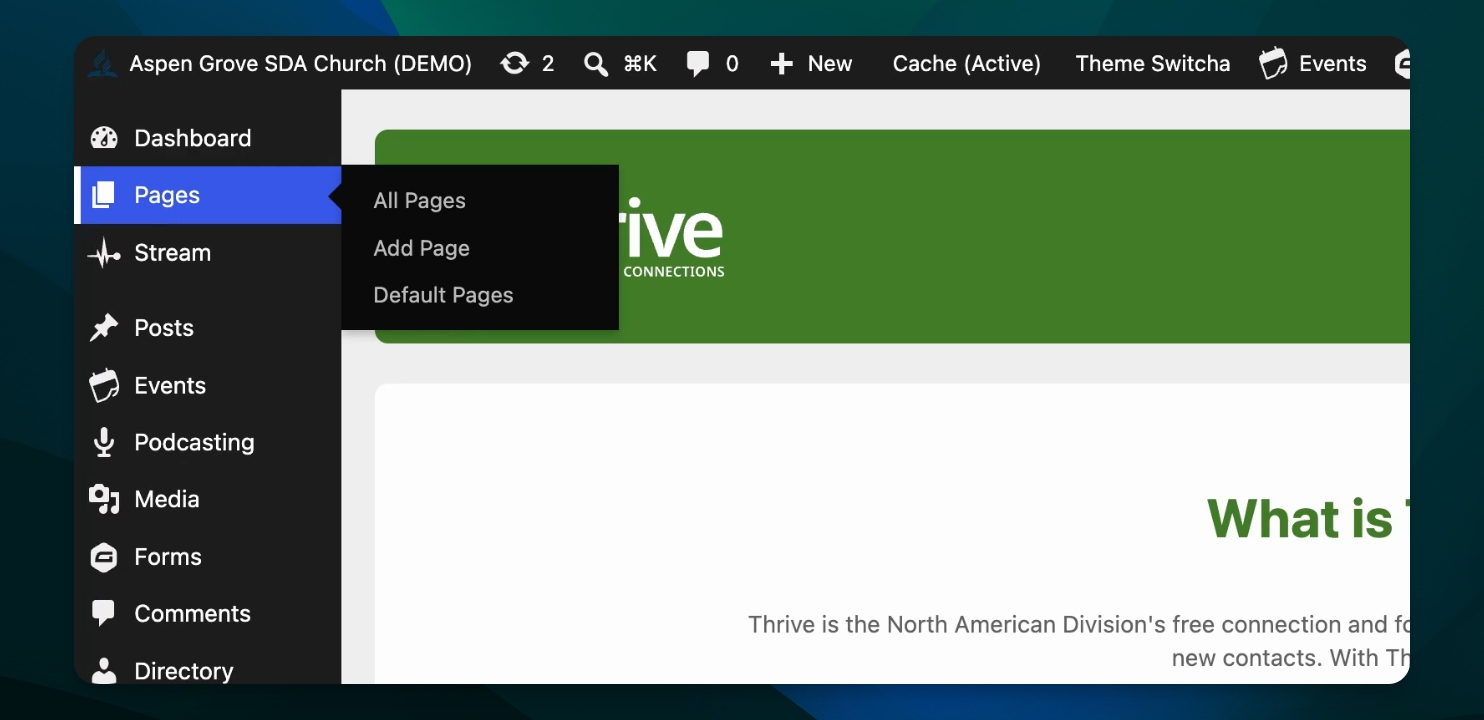
Step 2: Add Thrive Form Block
Add the thriveform block to your page. You can search for Thrive and select Thrive form from the options.
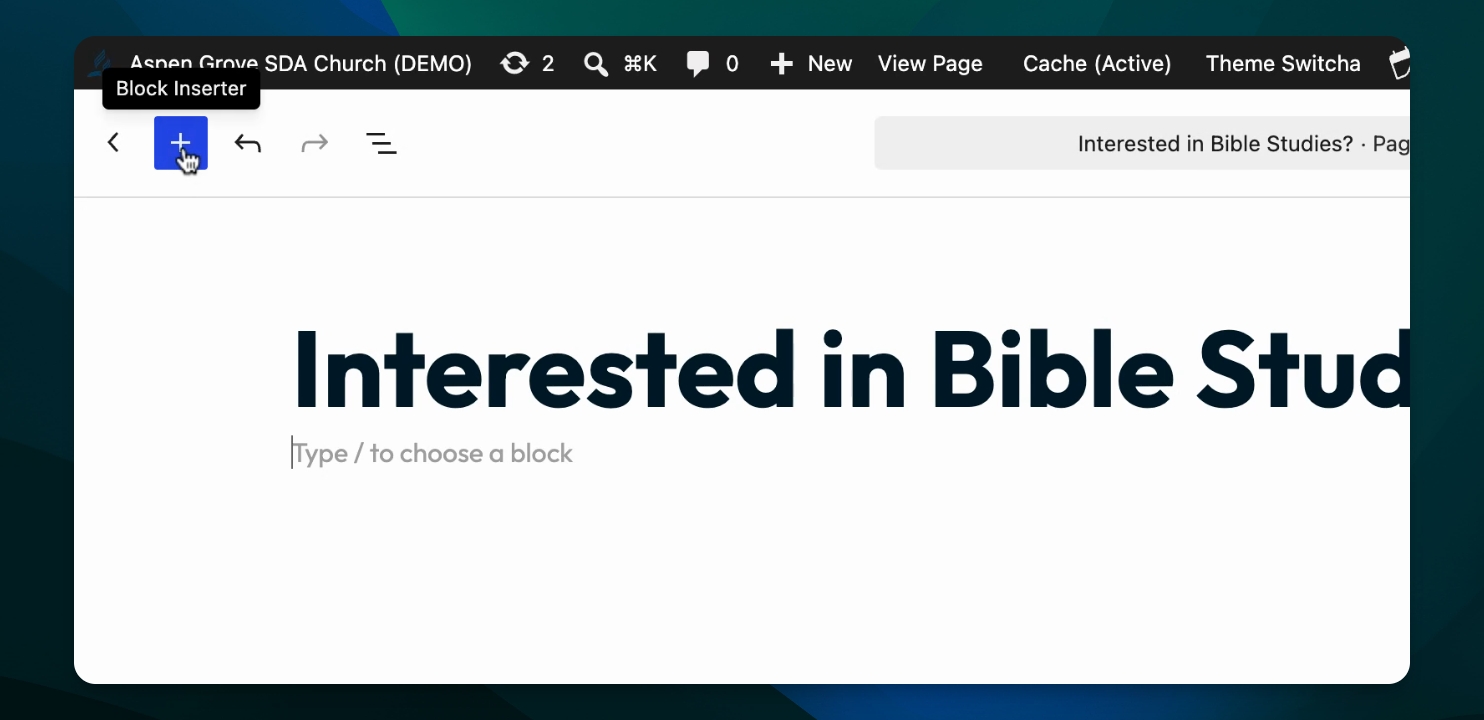
Step 3: Insert the Block
Click the Thrive form block to add it to your page.
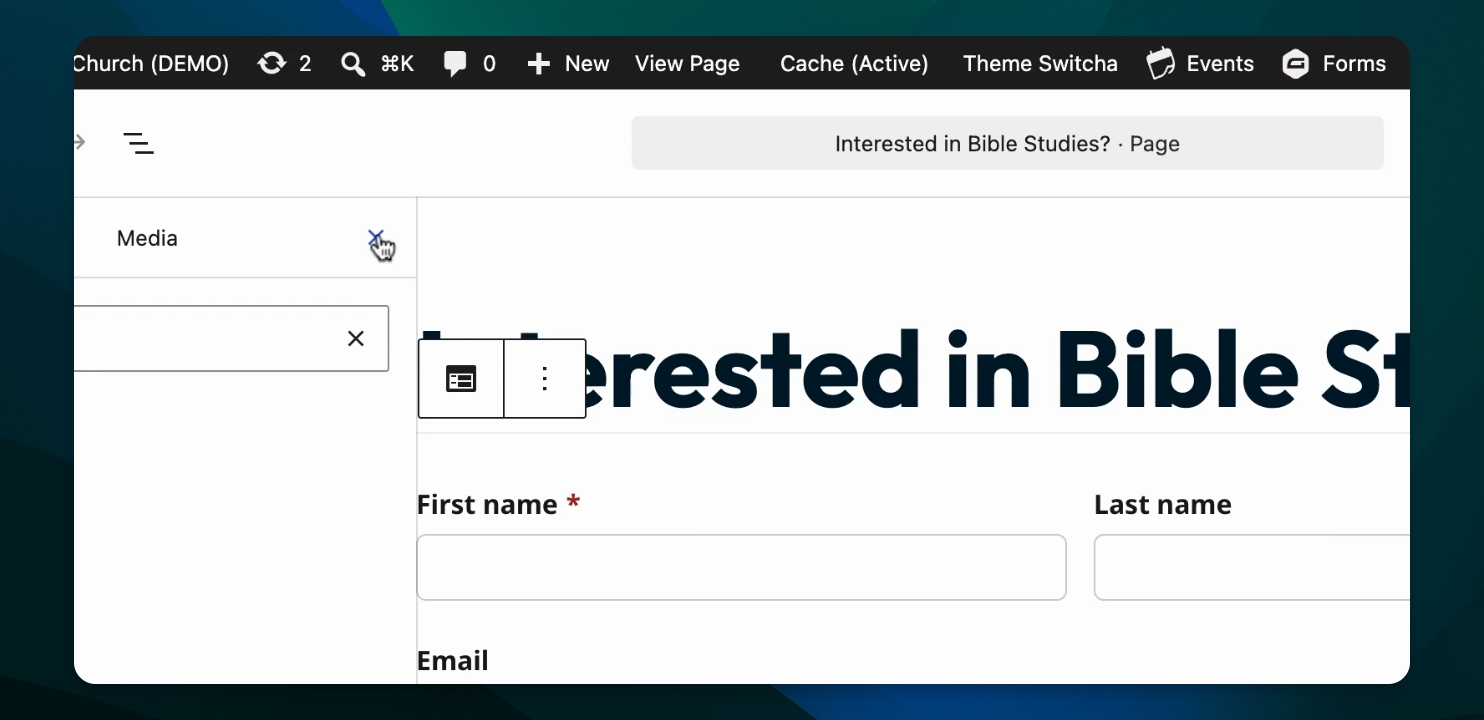
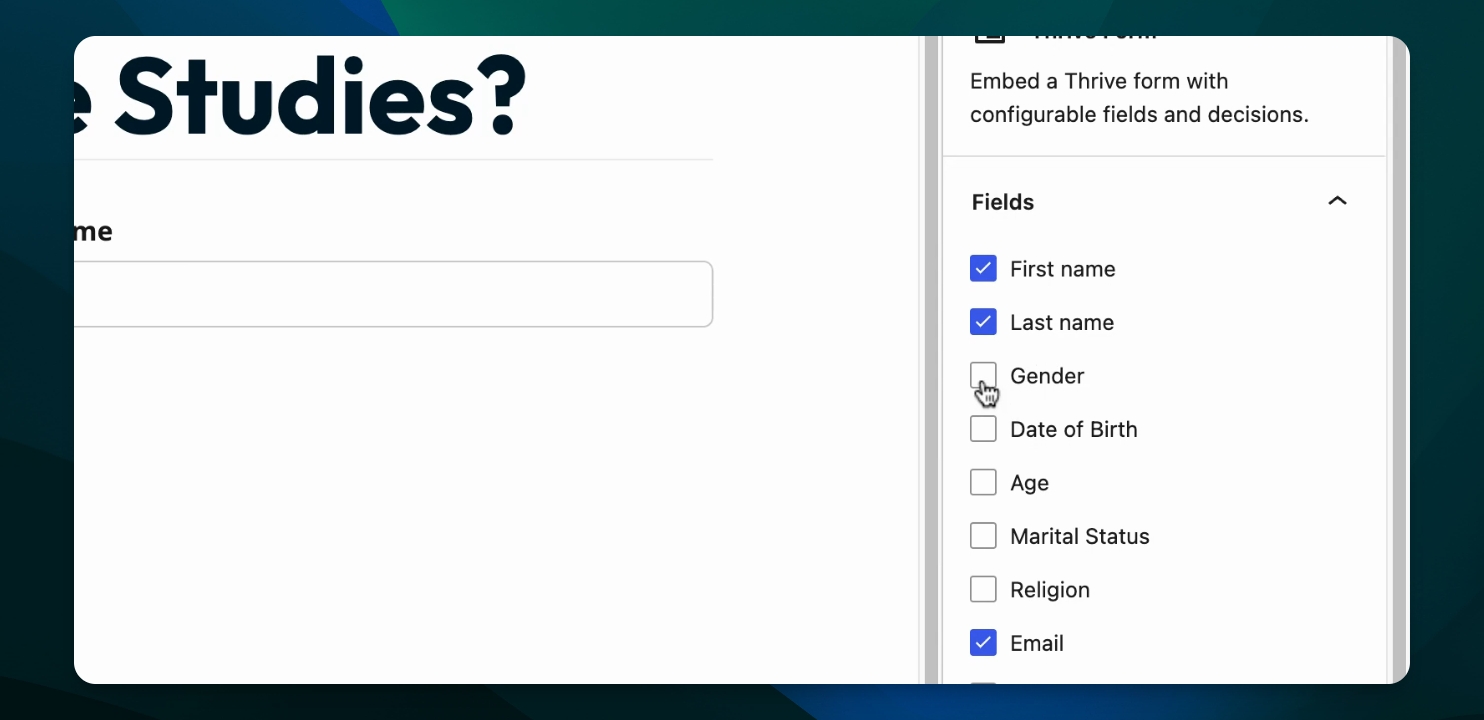
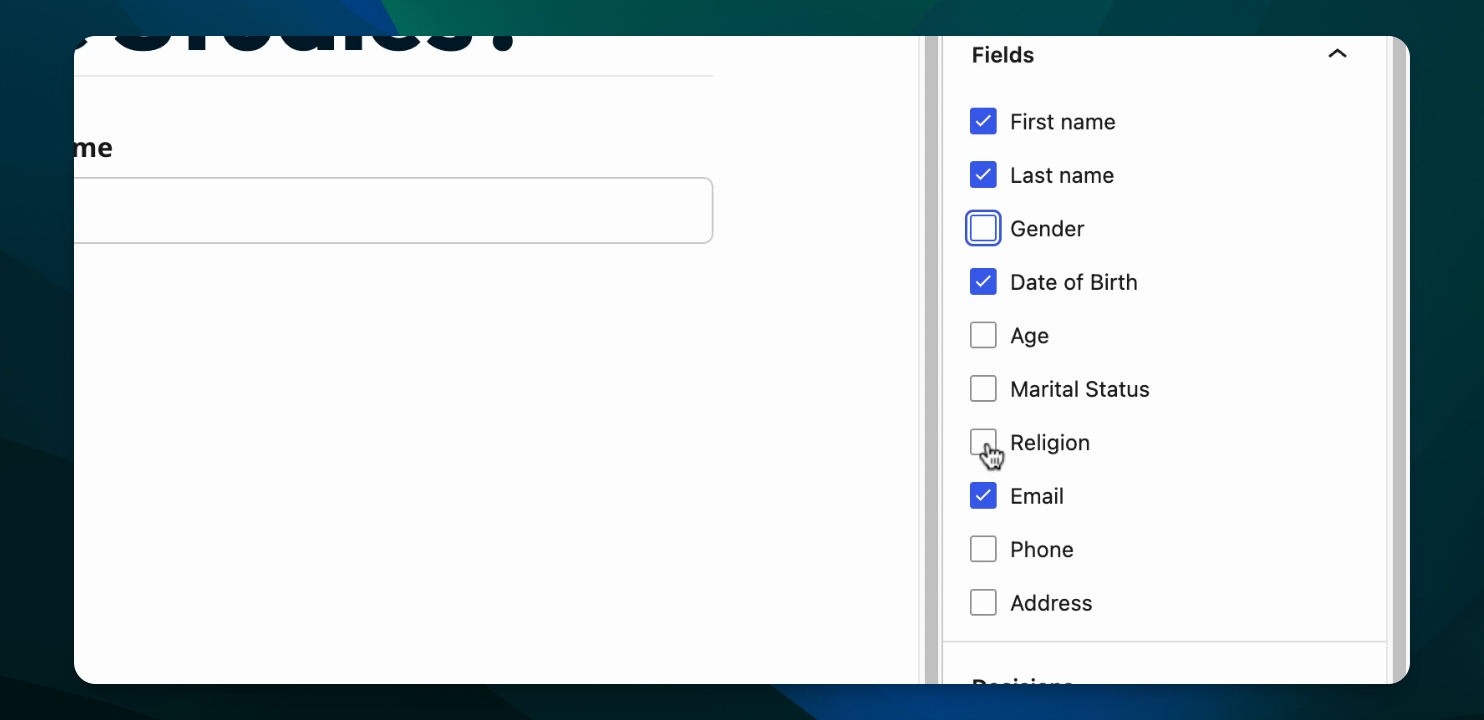
Step 4: Configure Form Fields
With the block selected, use the right-hand block menu to choose field options for your form. These fields will match the data available in Thrive, so information entered by users will automatically sync to your Thrive account.
Step 5: Set Decision in Thrive
In Thrive, select the appropriate decision so new contacts from the form are marked correctly.
Step 6: Save the Form
Once your form is ready, click Save.
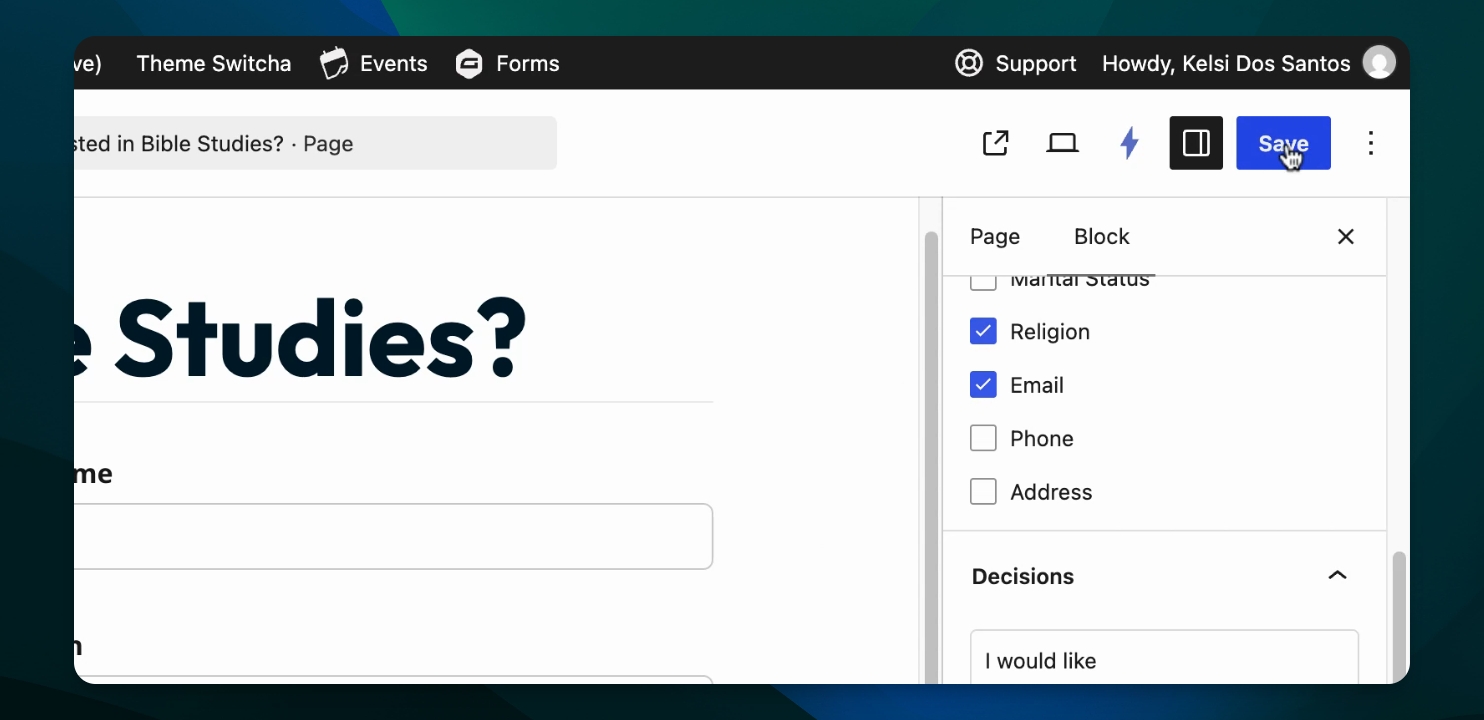
This is how your form will appear on the live site. All data entered into this form will automatically appear in Thrive.