Let's do it together!
Step 1: Access Dashboard
Go to the Frame dashboard to begin customizing your website colors.
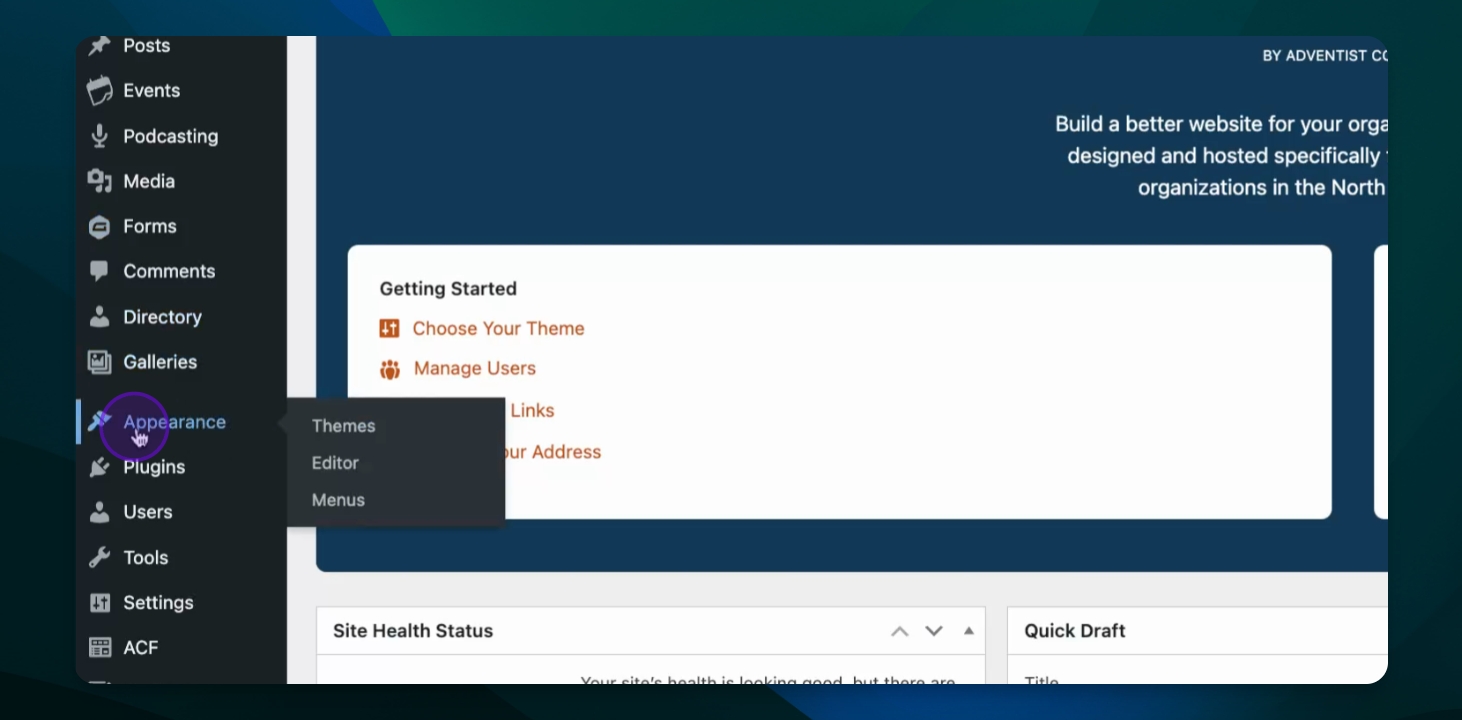
Step 2: Open Appearance
In the left column, select Appearance. You can change your theme here if you want to change your site's colors and layout.
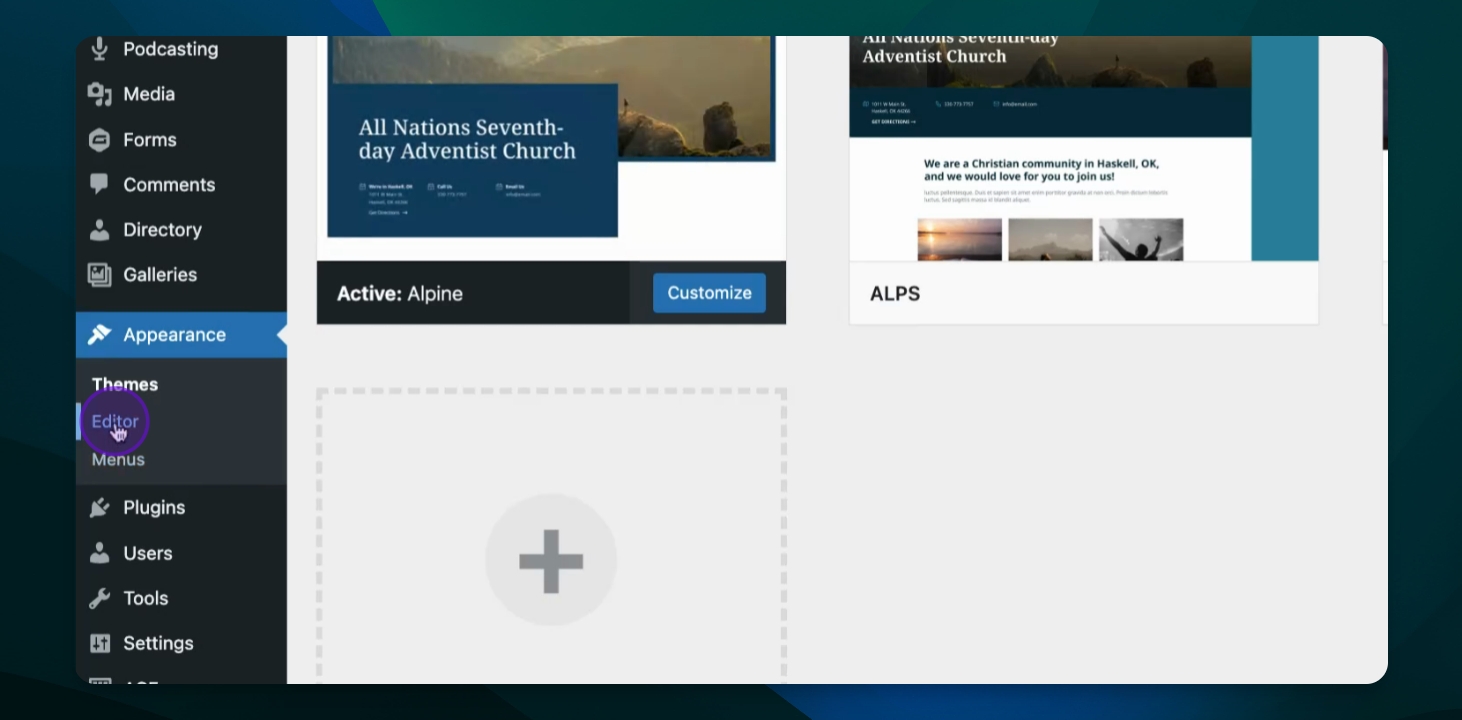
Step 3: Choose Editor
If you want to keep your layout, select Editor instead of changing themes.
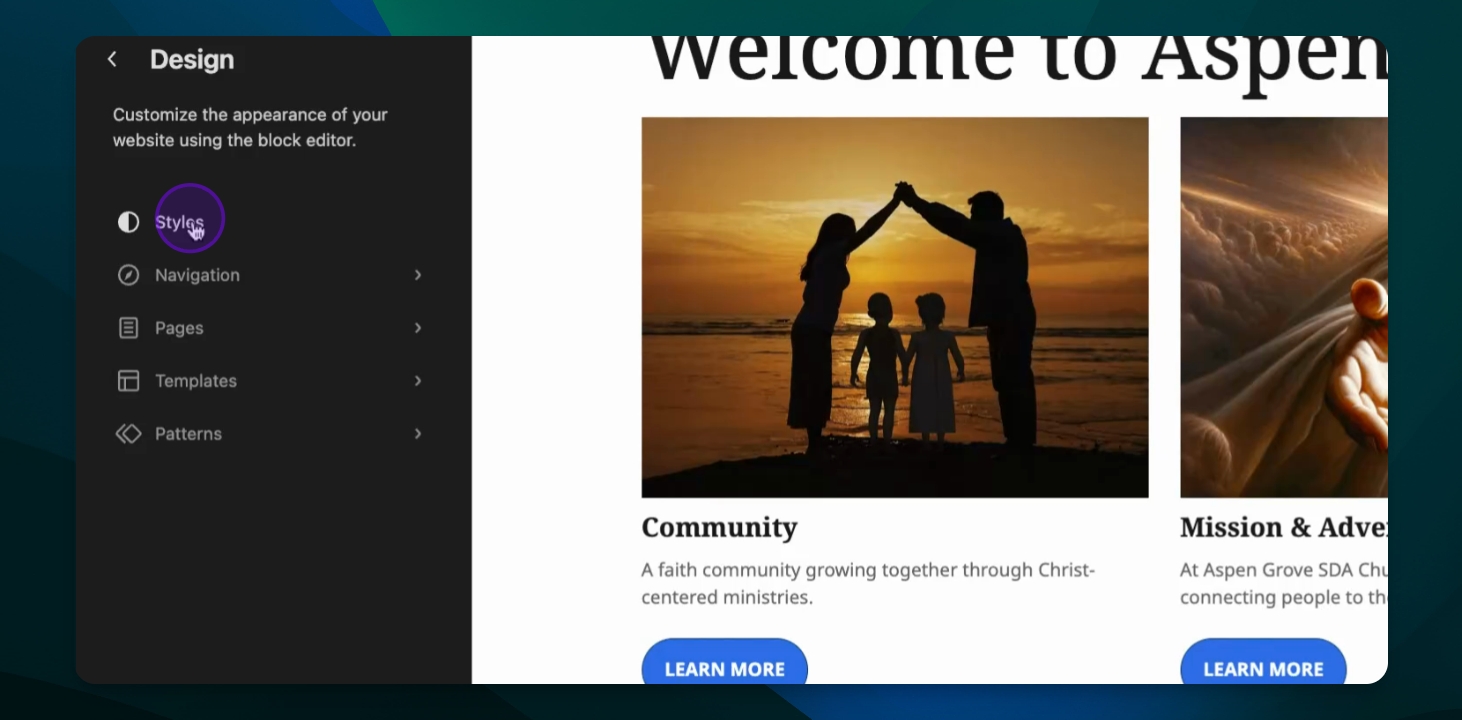
Step 4: Navigate to Styles
Select Styles from the menu to access color settings.
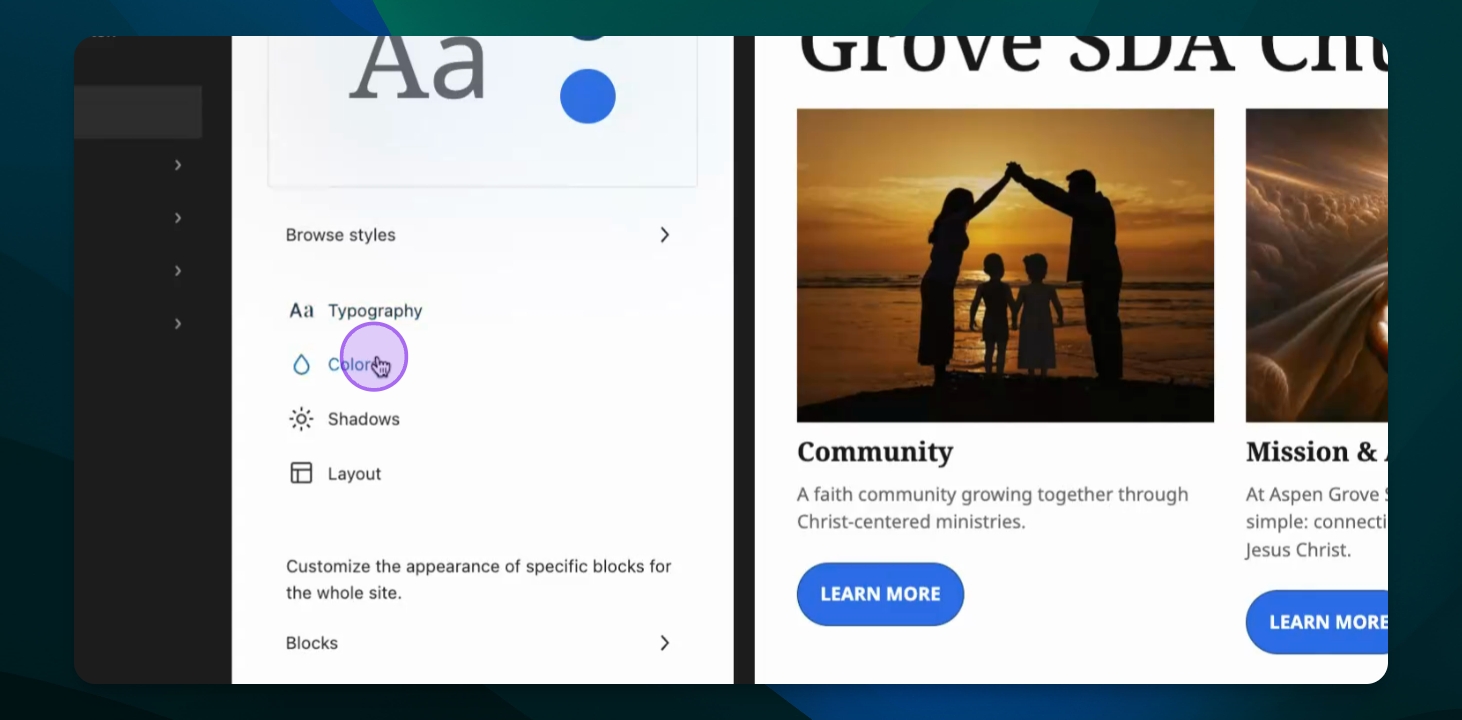
Step 5: Select Colors
Click on Colors to manage your website's color palette.
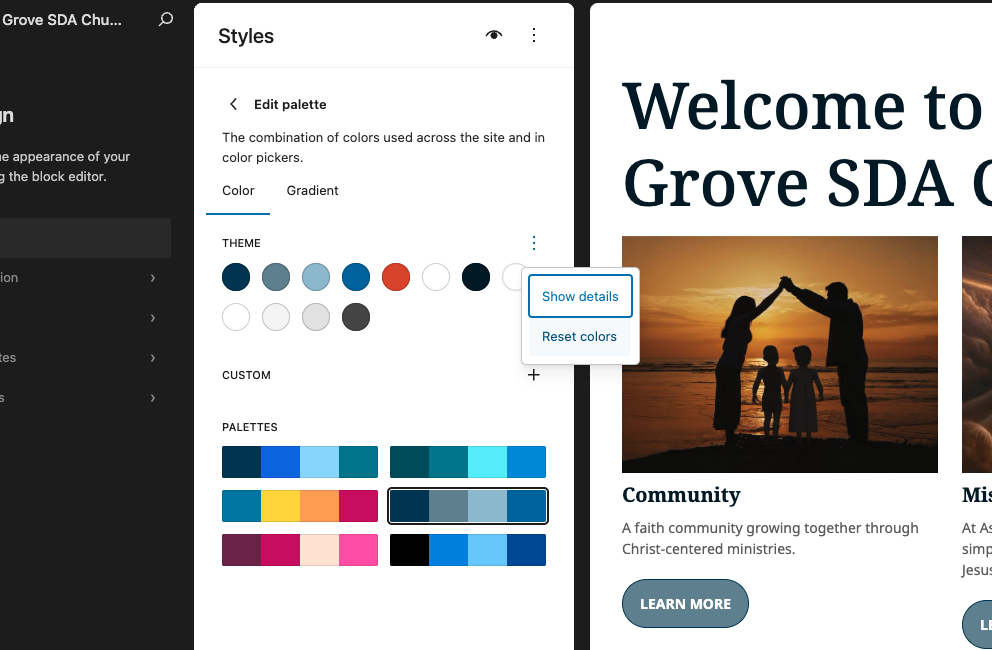
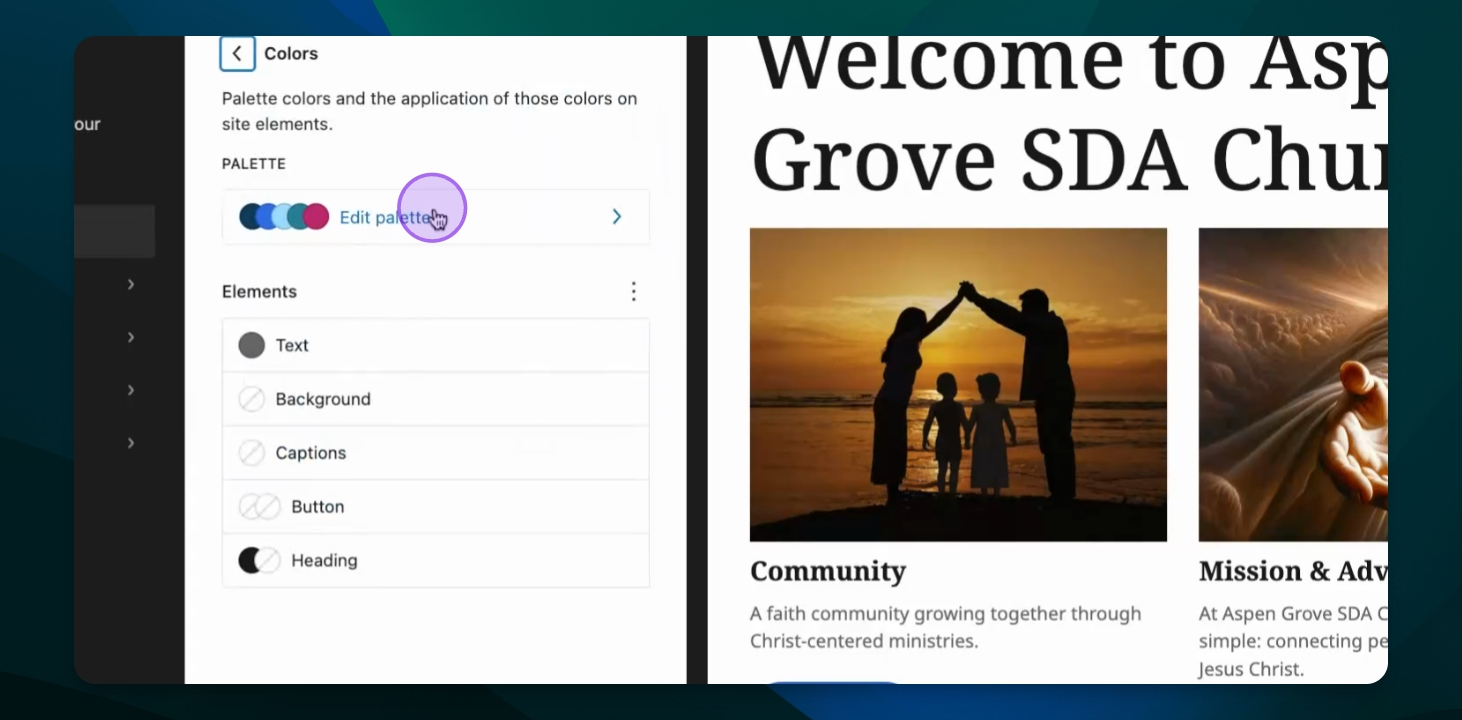
Step 6: Edit Palette
Click Edit Palette to view the available color options.
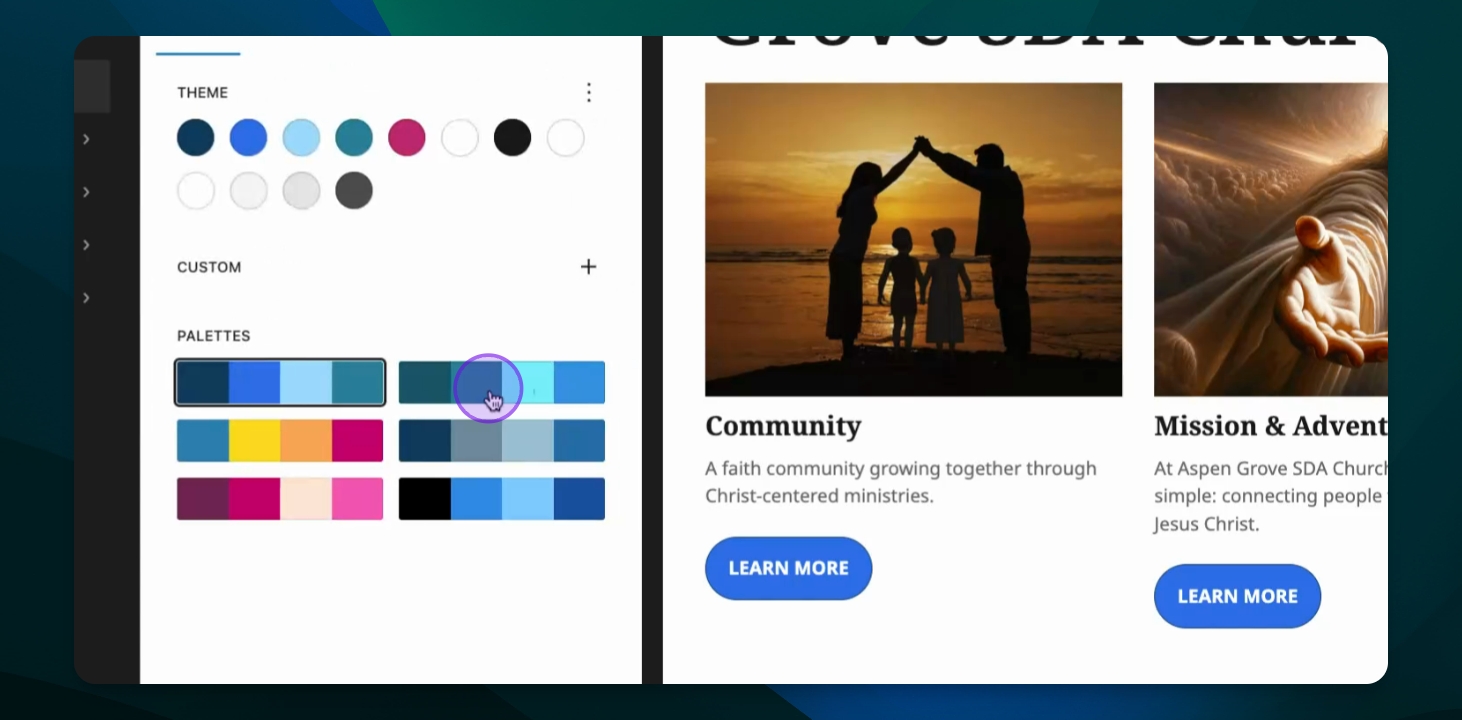
Step 7: Choose a Palette
Select a color palette that best fits your ministry.
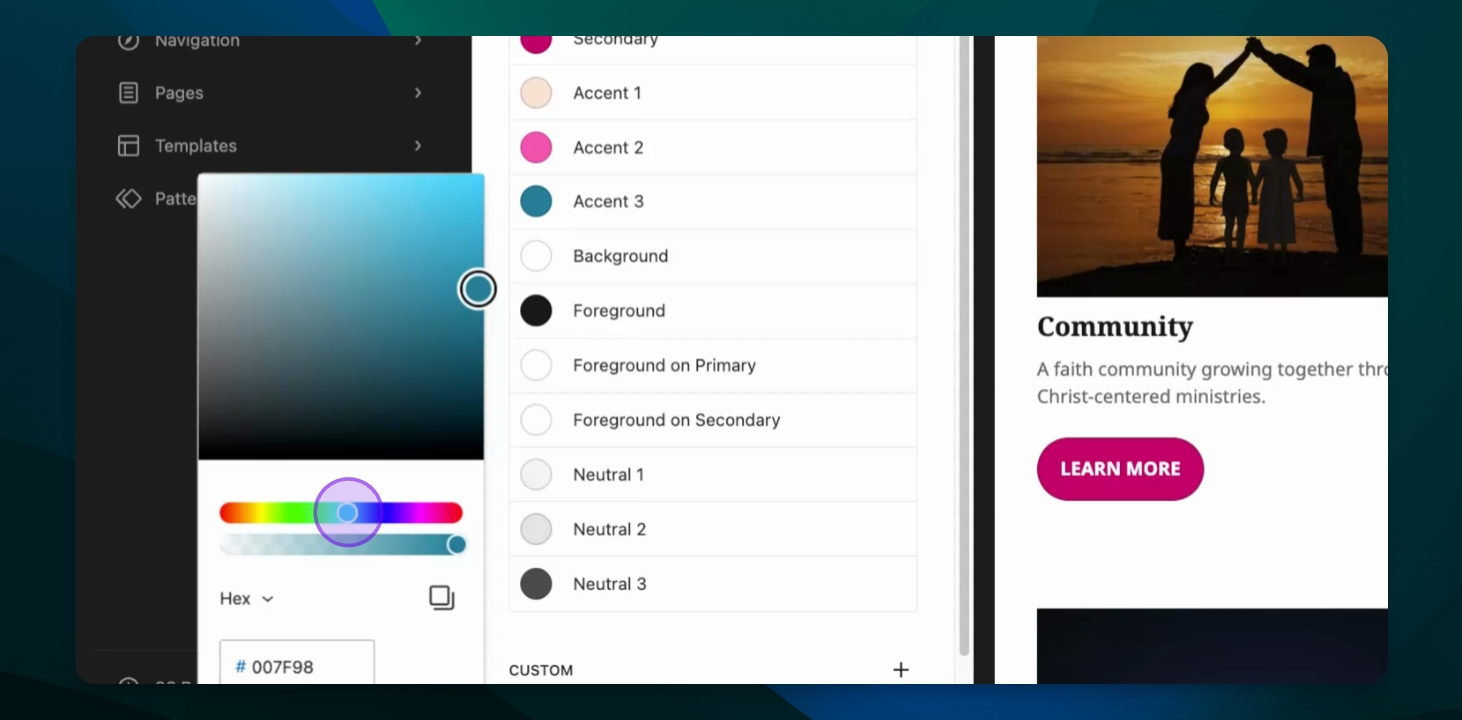
Step 8: Customize Colors
To change a specific color, click the Options button and edit as needed.
Avoid changing dark colors to light or vice versa to keep content readable.
Maintaining contrast is crucial for readability.
Step 9: Review Changes, Reset if needed
Once satisfied with your selections, review and save your changes. Be sure to view the updated colors on your website to ensure they look good and all your content is still readable.
Use the reset colors option to return to the palettes original settings.