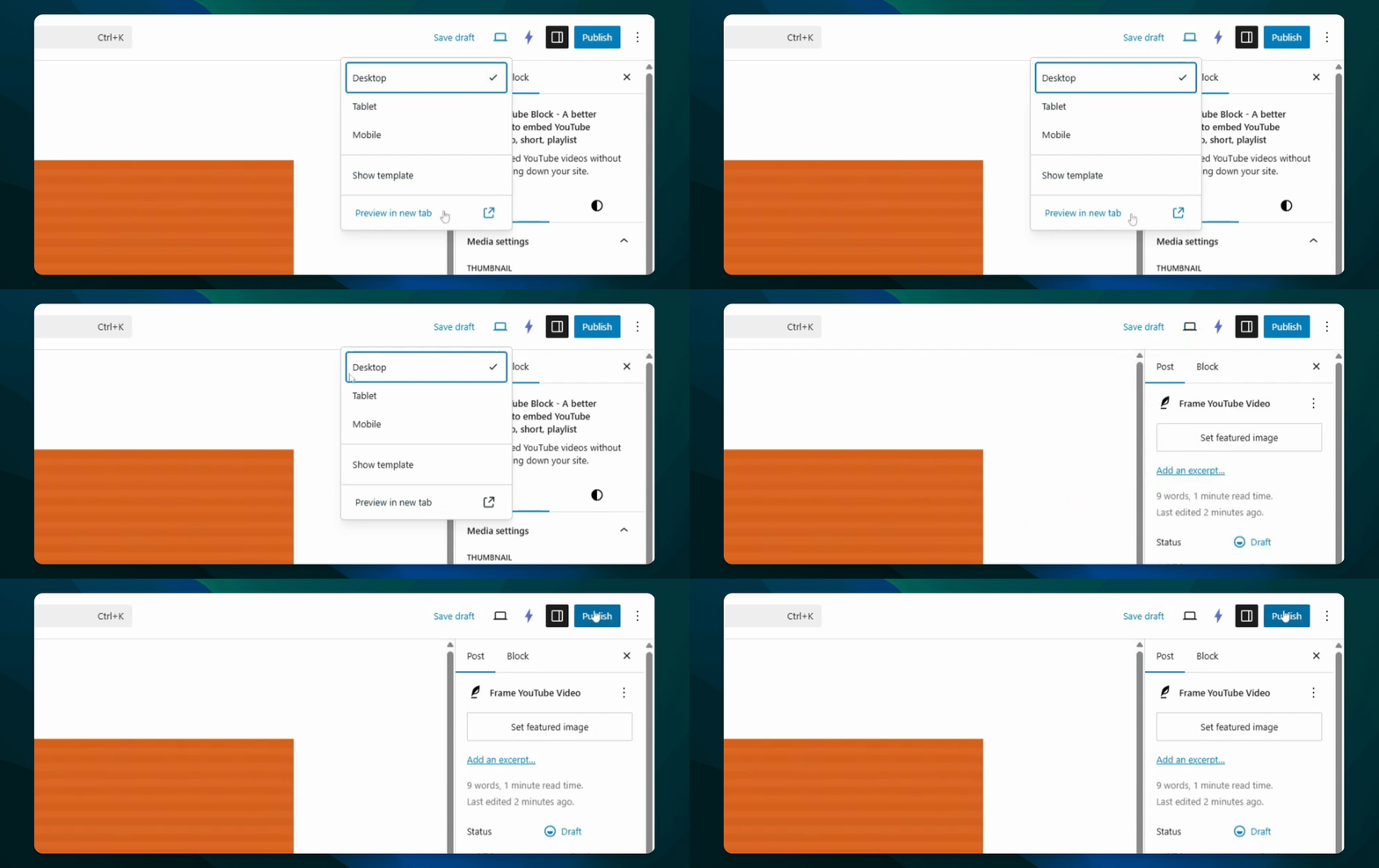
Let's do it together!
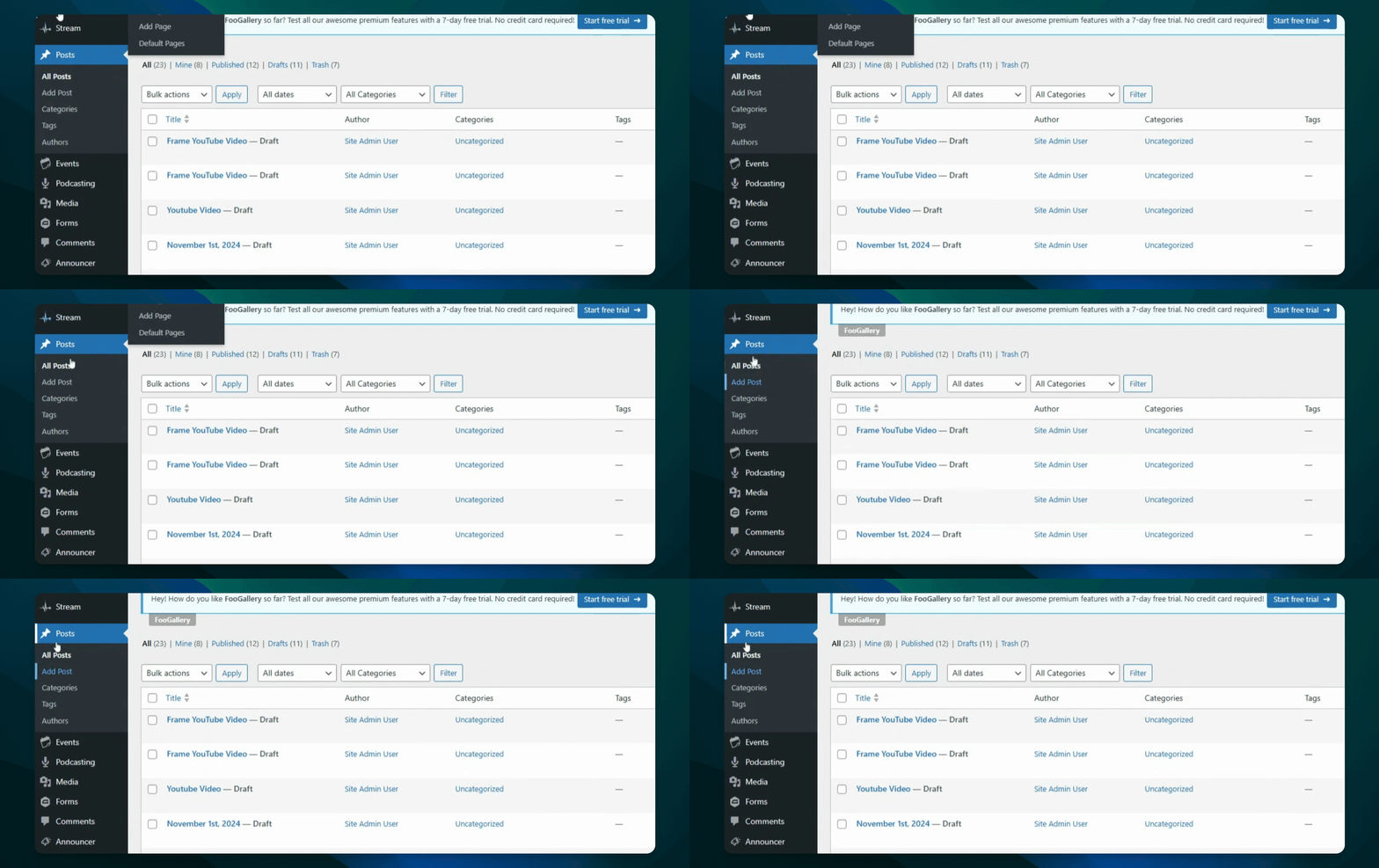
Step 1: Go to Posts or Pages
Select the posts or pages where you want to add the YouTube embed.
Step 2: Add a New Post
Create a new post by selecting 'Add New Post'.
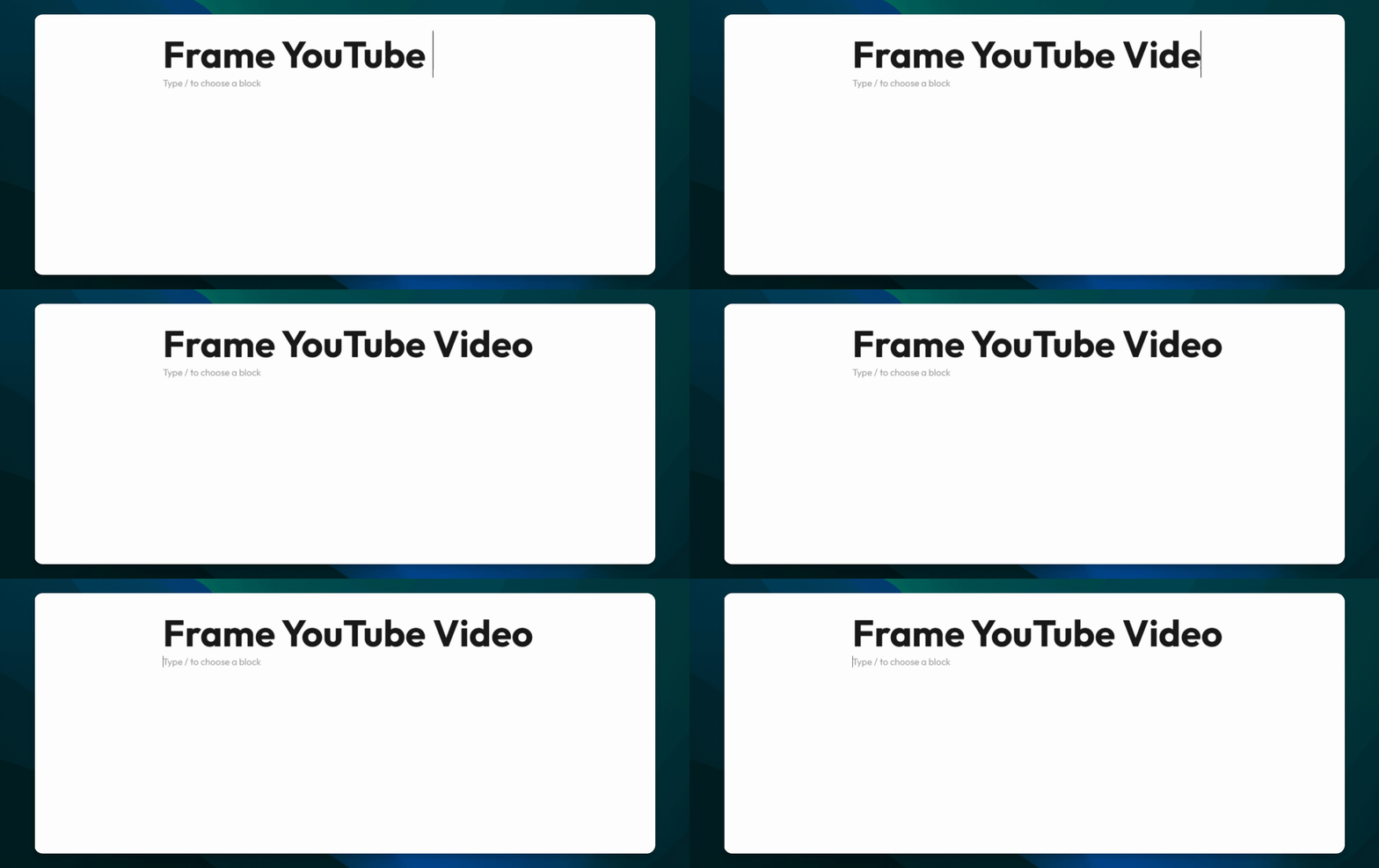
Step 3: Name Your Post
Enter a name for your new post.
Step 4: Add YouTube Block
Type in 'YouTube block' where you want to add the video.
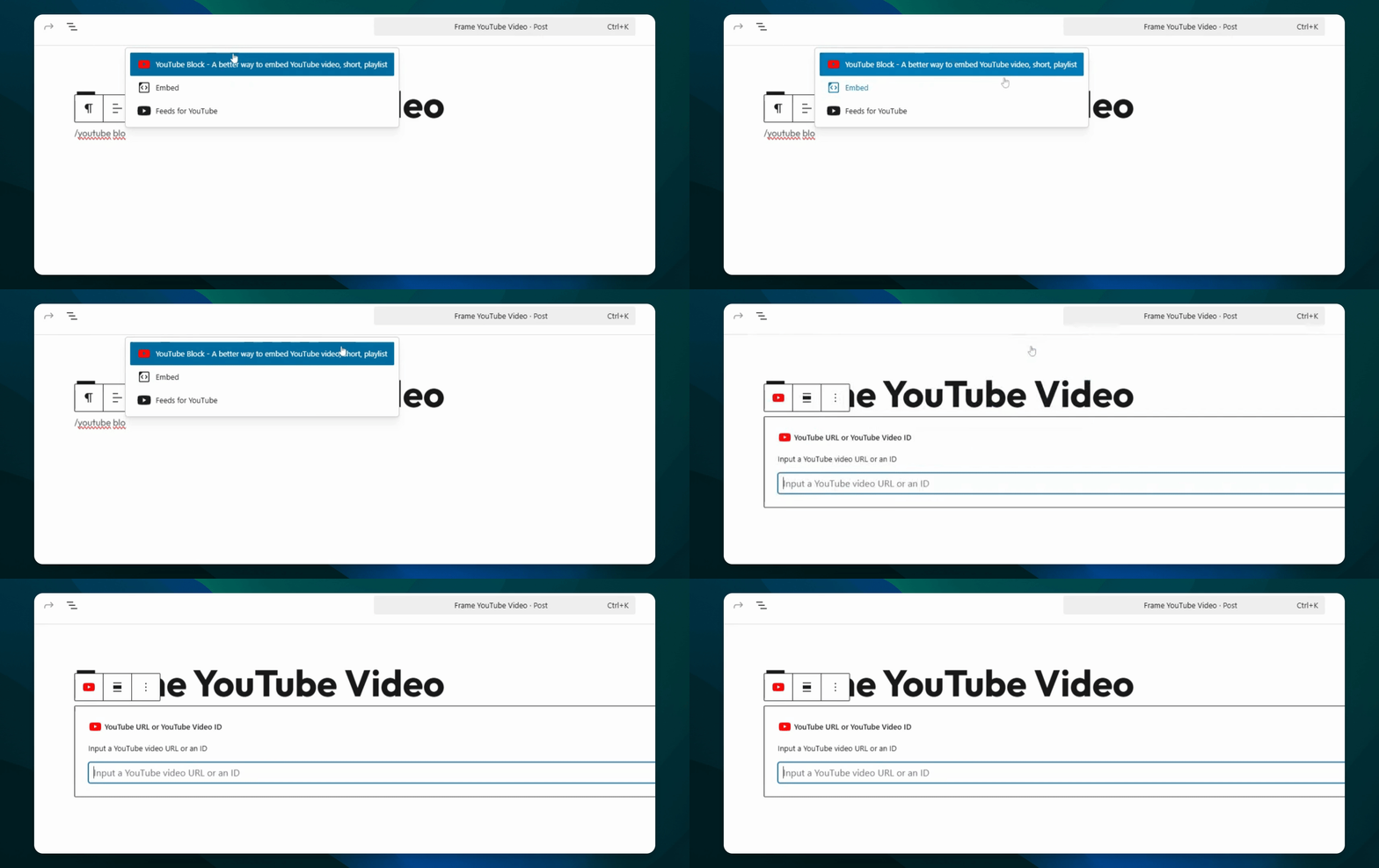
Step 5: Input Video URL or ID
Copy the video URL or ID from YouTube.
Step 6: Paste Video URL or ID
On Windows, press Ctrl + V; On Mac, press Command + V.
Step 7: Click Embed
Press the blue embed button to add the video.
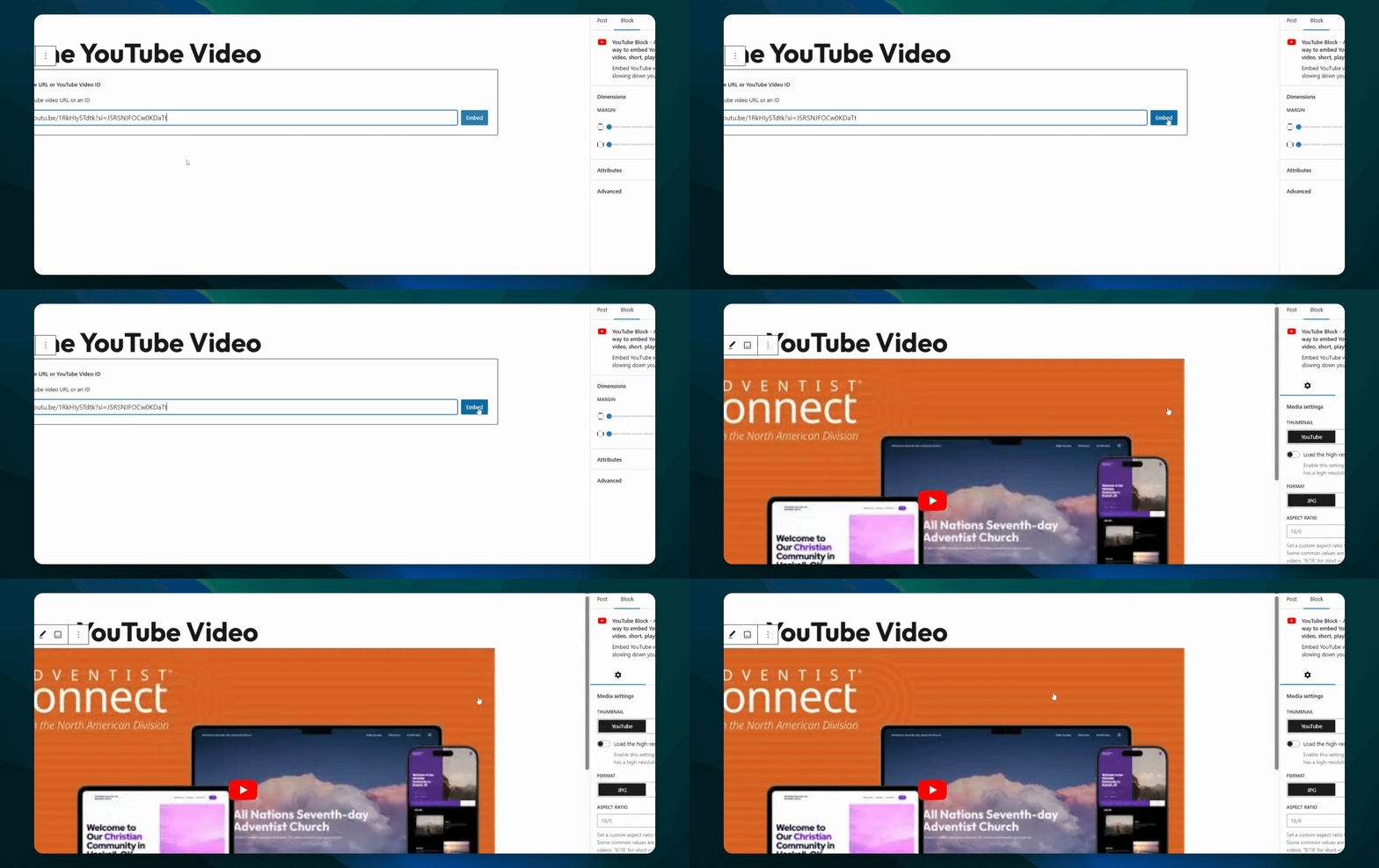
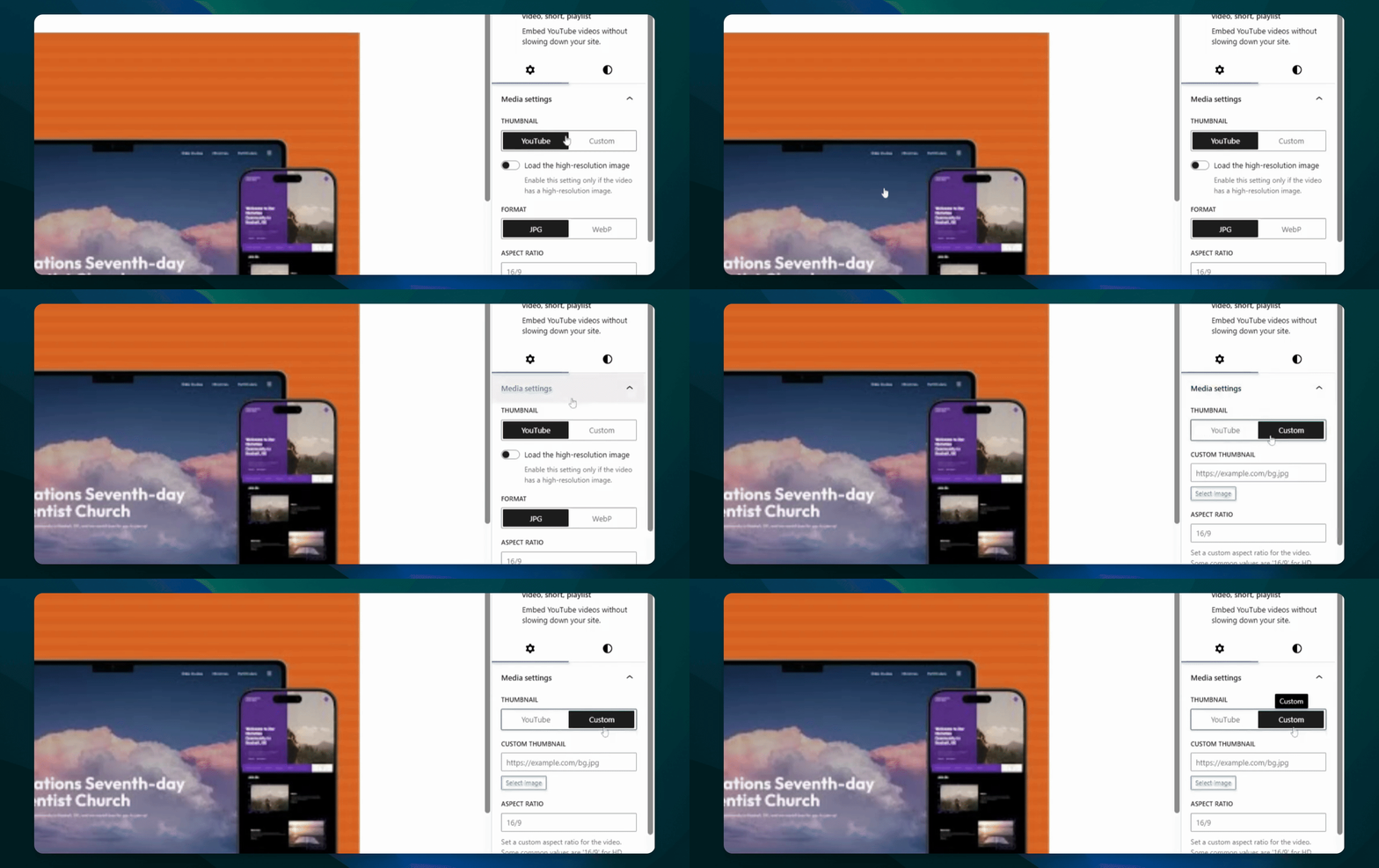
Step 8: Customize Thumbnail
Optionally, press the custom button in media settings to upload a thumbnail.
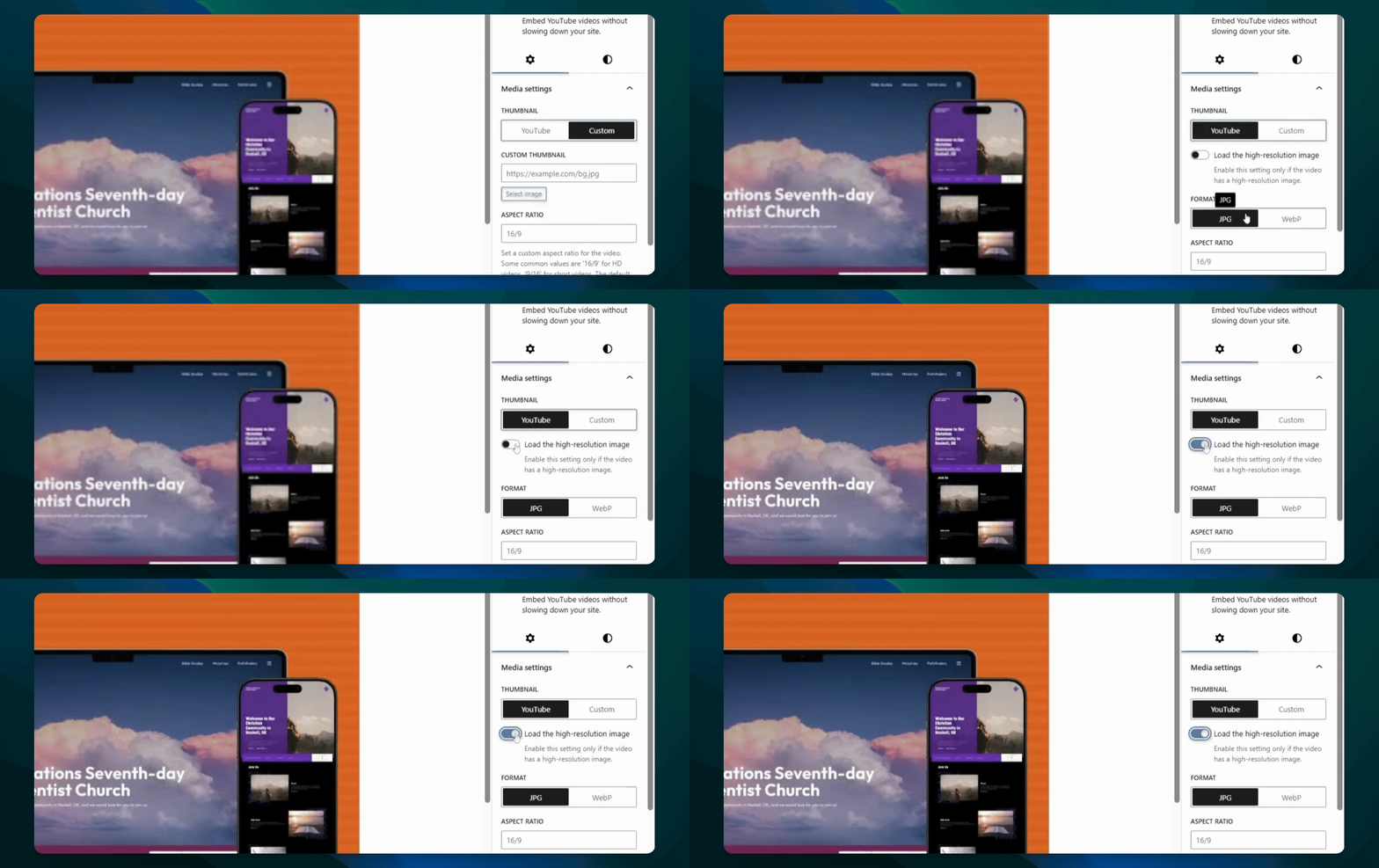
Step 9: Load High-Resolution Image
Click to load a high-resolution image for better clarity.
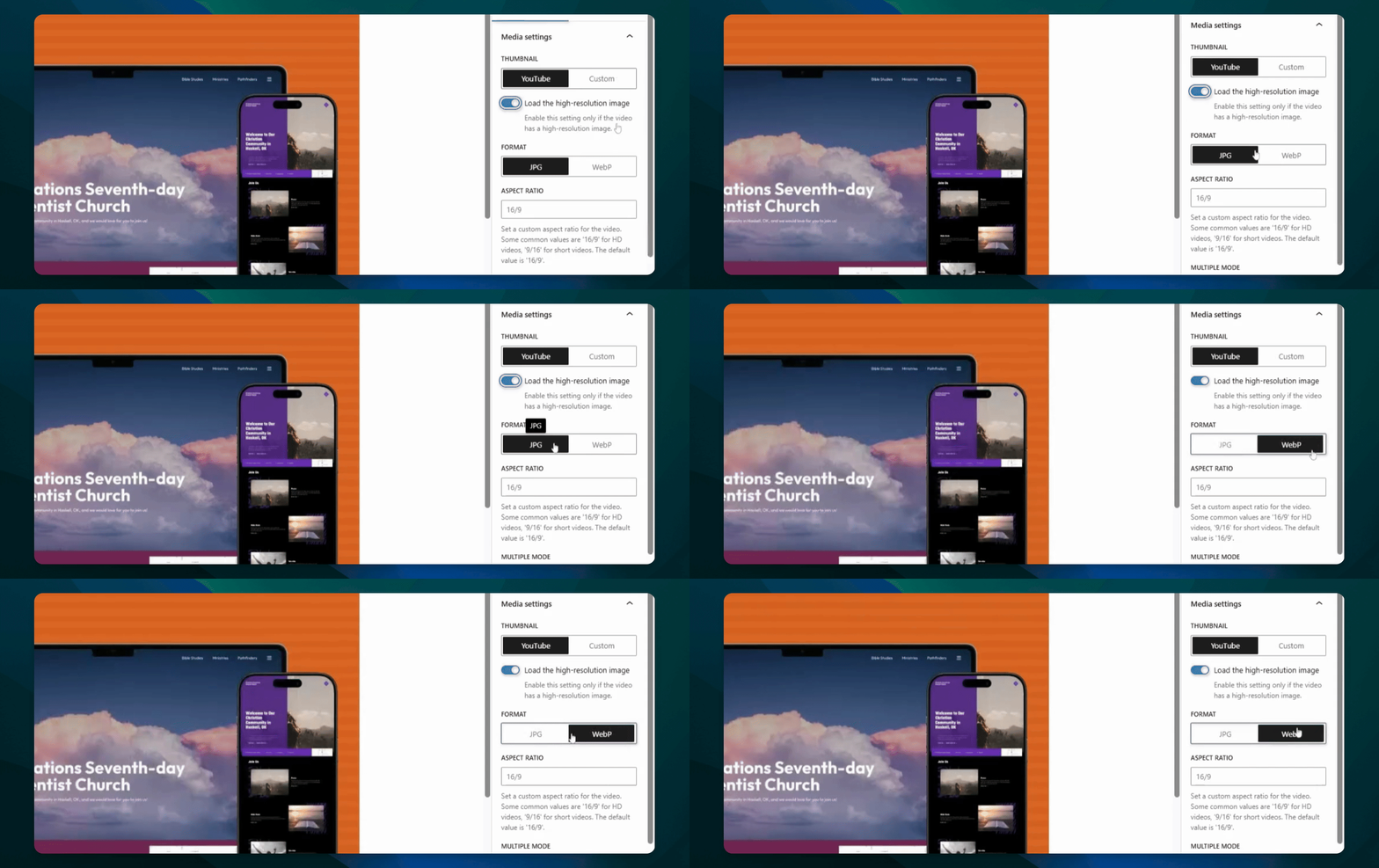
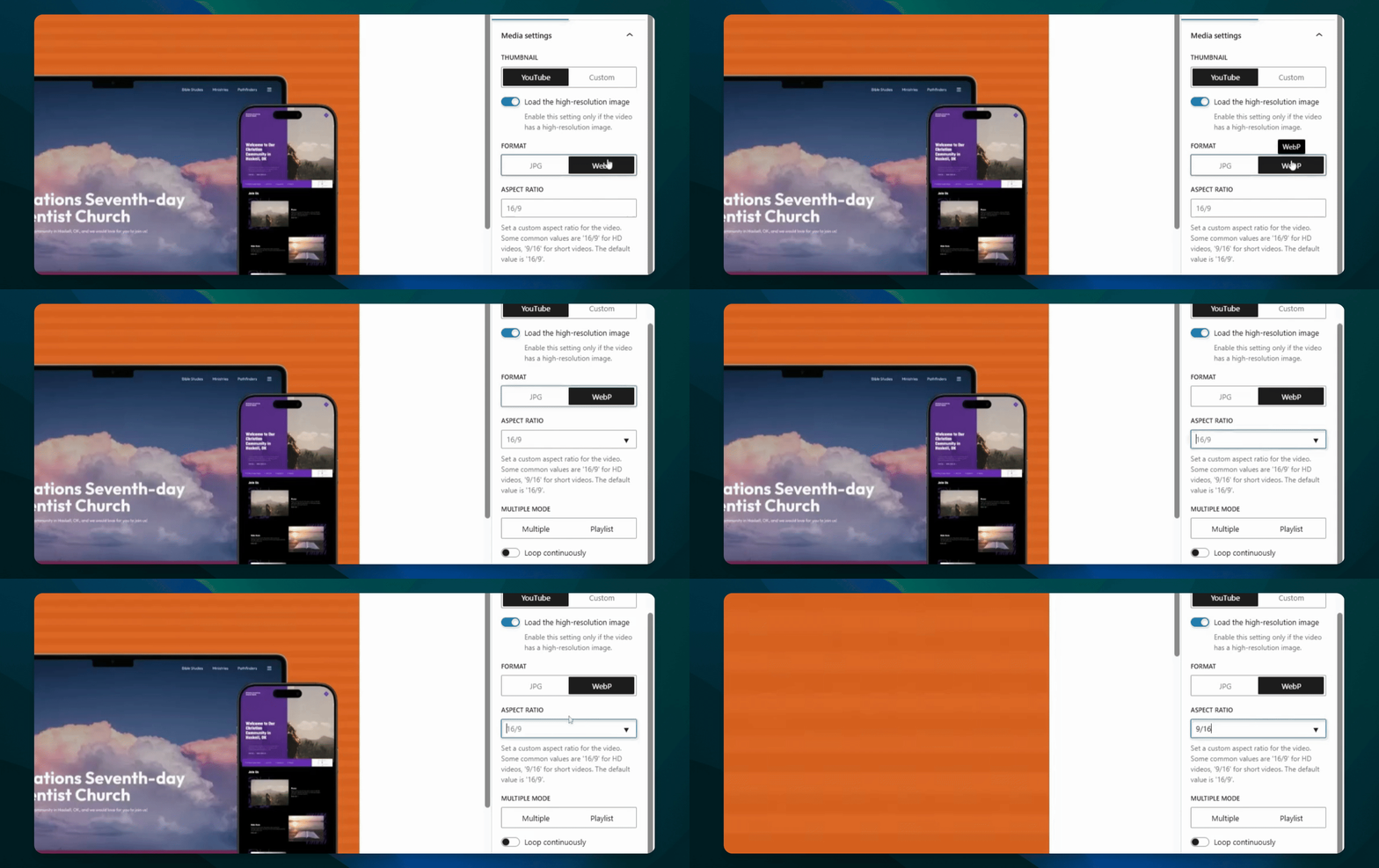
Step 10: Change Image Format
Select between JPEG or webp formats, using webp for faster loading.
Step 11: Adjust Aspect Ratio
Set the aspect ratio; default is 16x9, adjust for vertical videos.
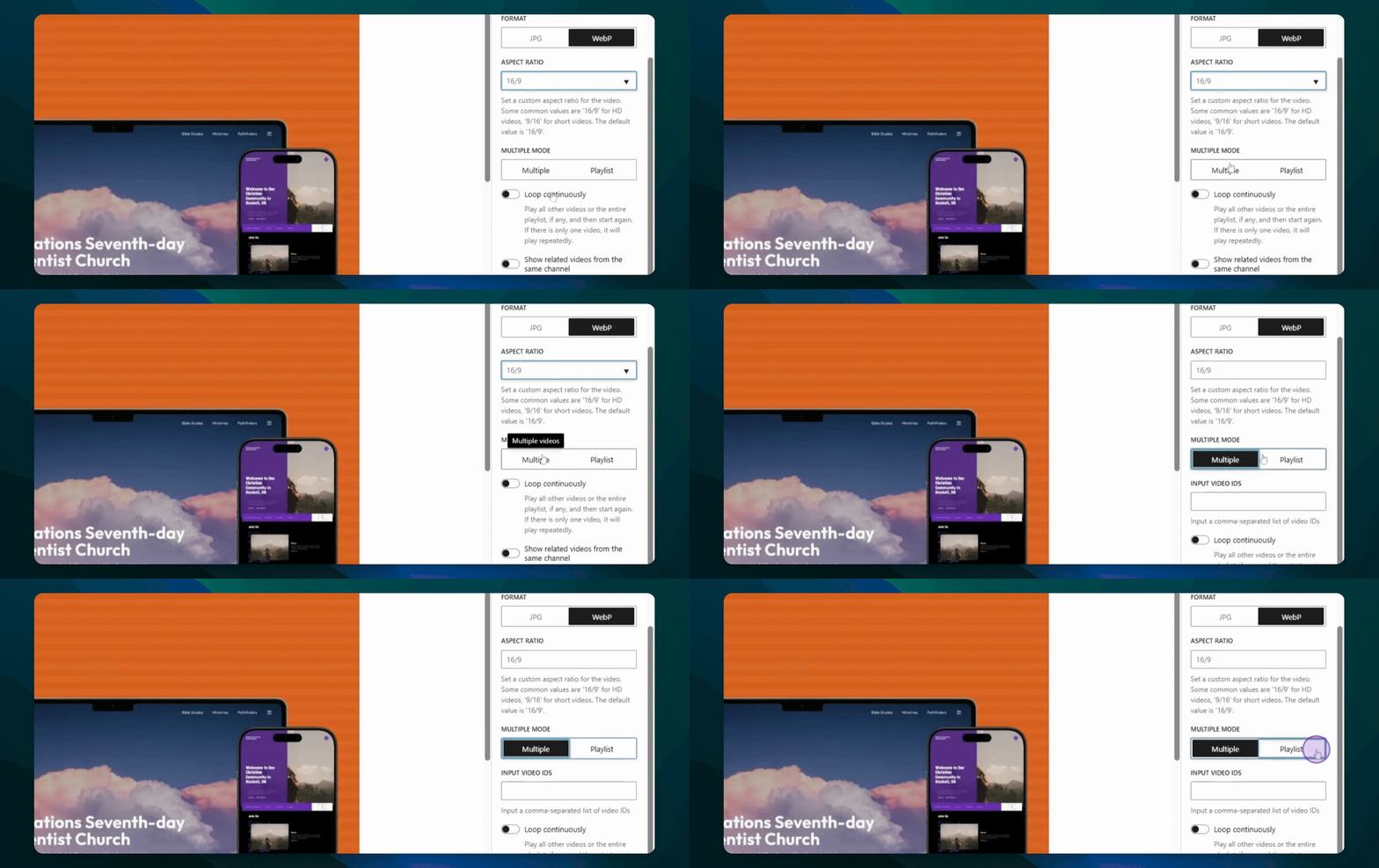
Step 12: Input Multiple Video IDs
Add multiple video IDs or a playlist ID for looping.
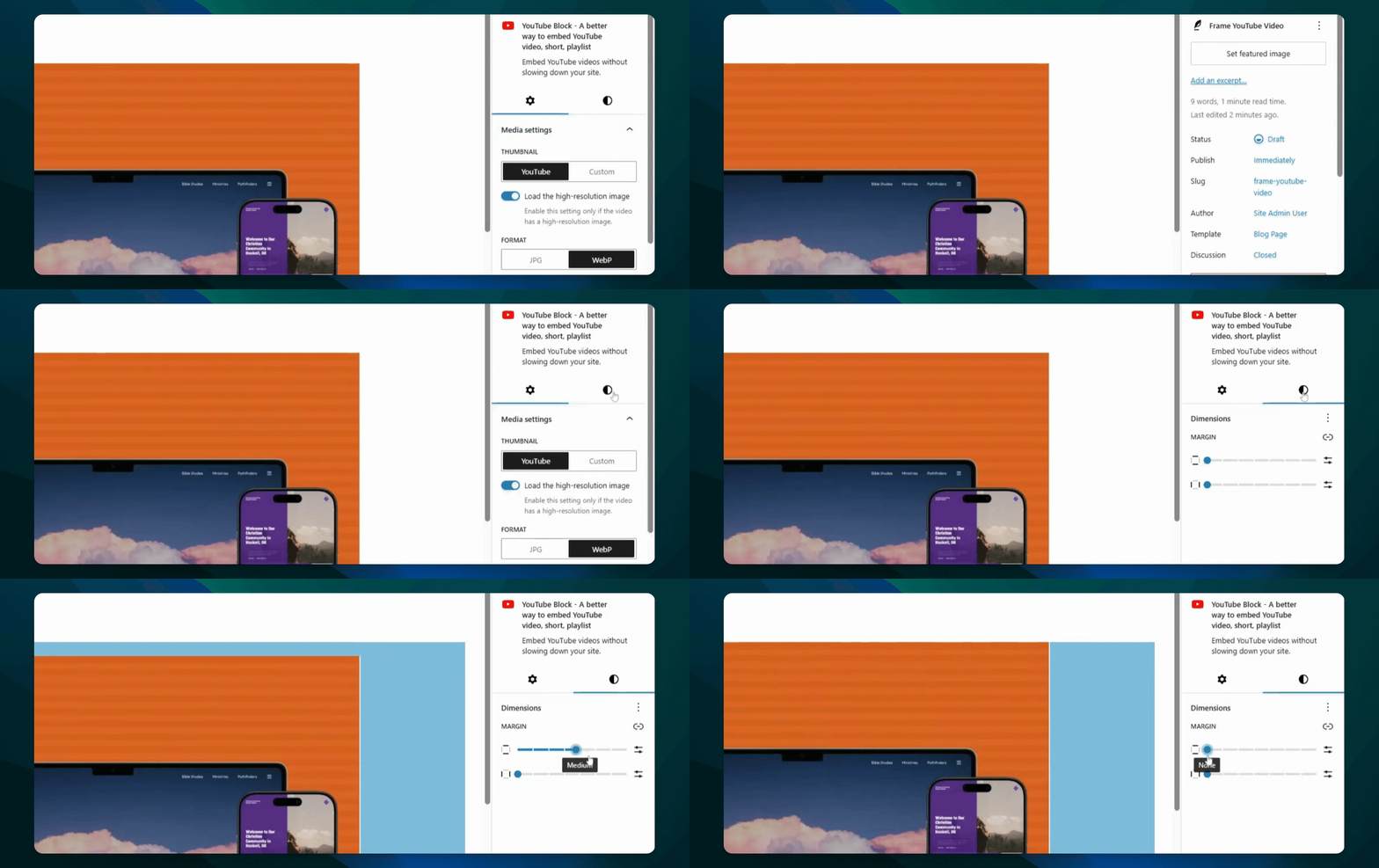
Step 13: Add Margin in Styles
Under styles, add margin to the top and sides.
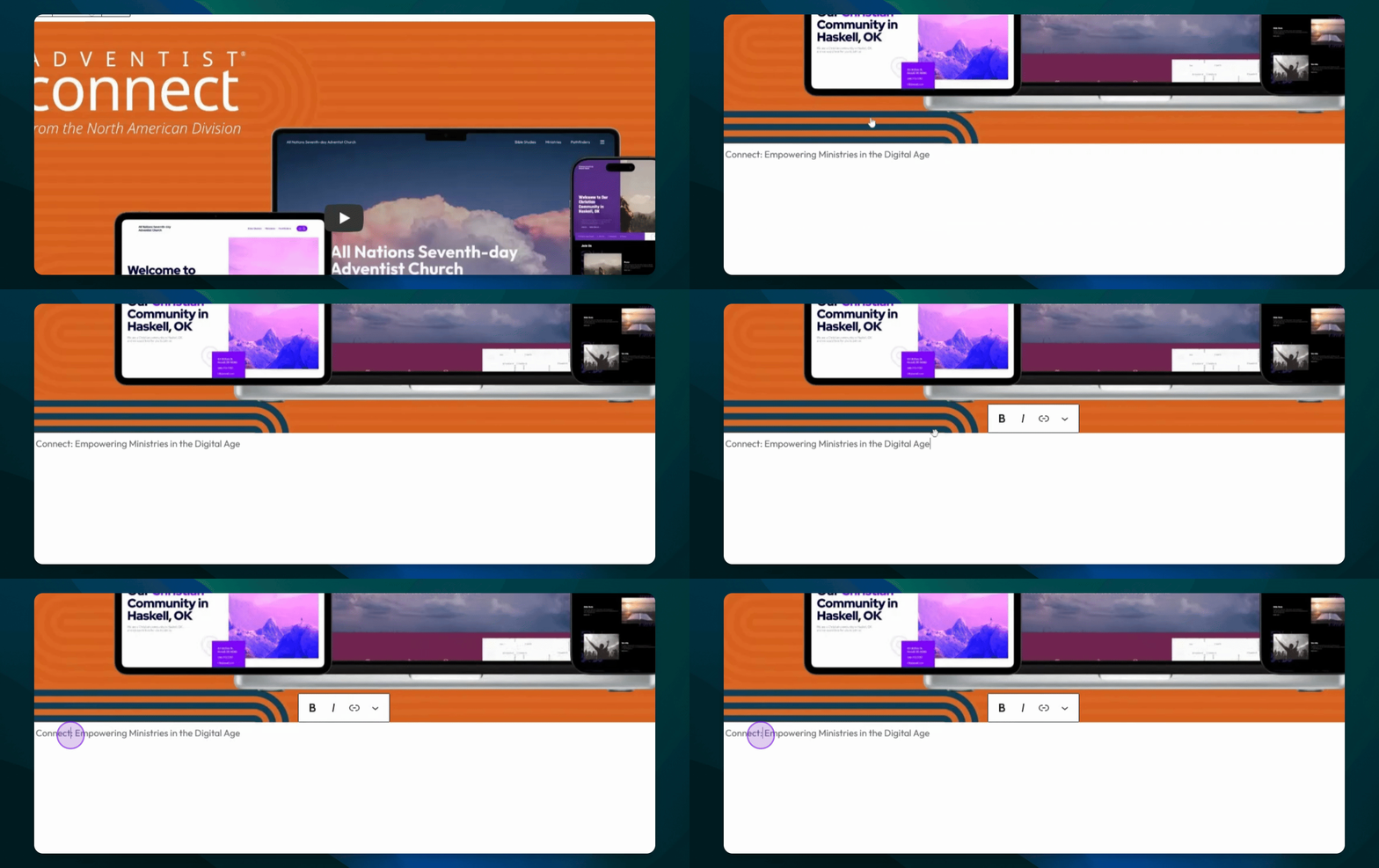
Step 14: Fetch Video Title as Caption
Enable fetching video title as a caption and edit it as needed.
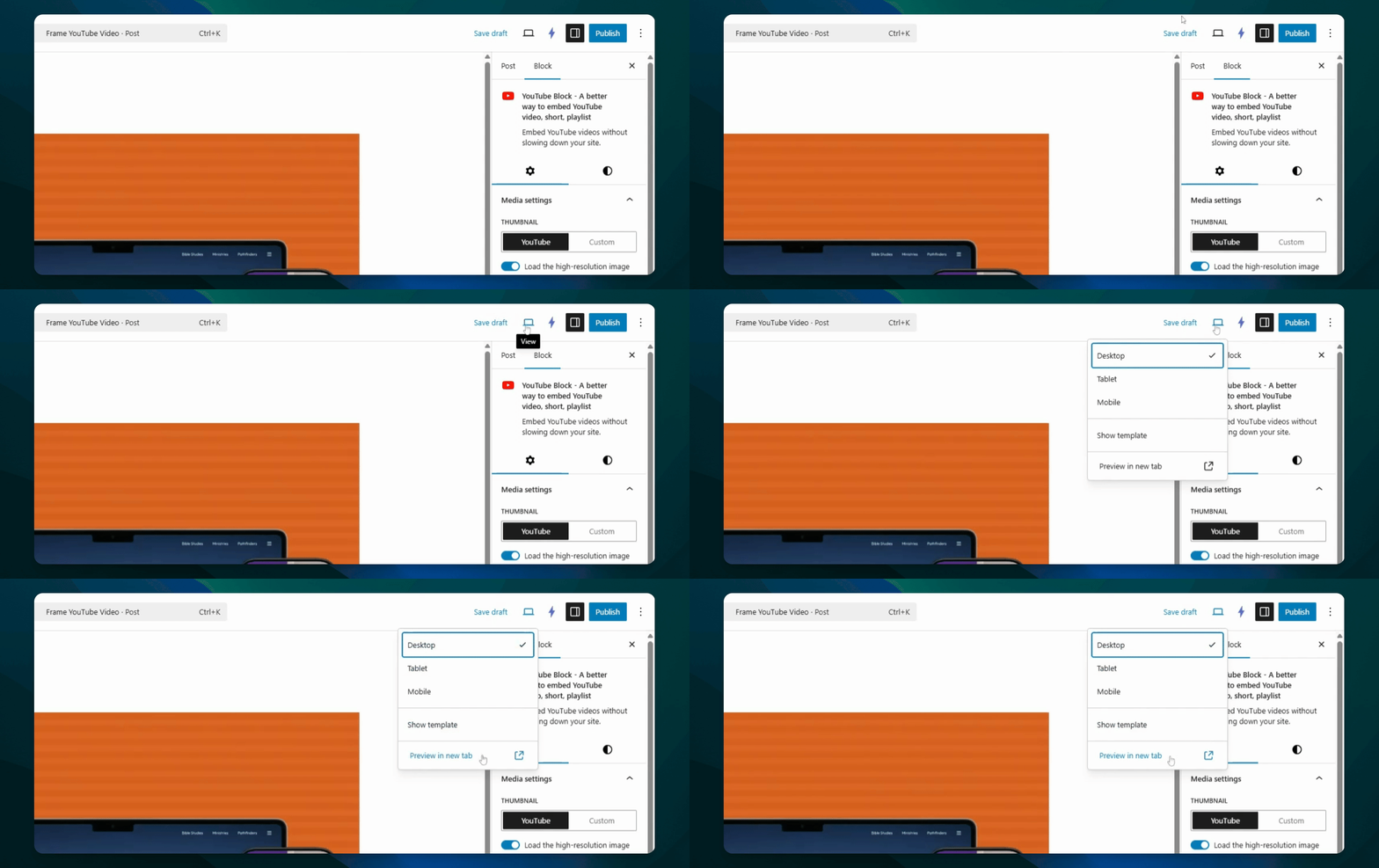
Step 15: Preview Changes
Click on view to preview your post in a new tab.
Step 16: Publish Your Post
Once satisfied, press the Publish button to finalize.