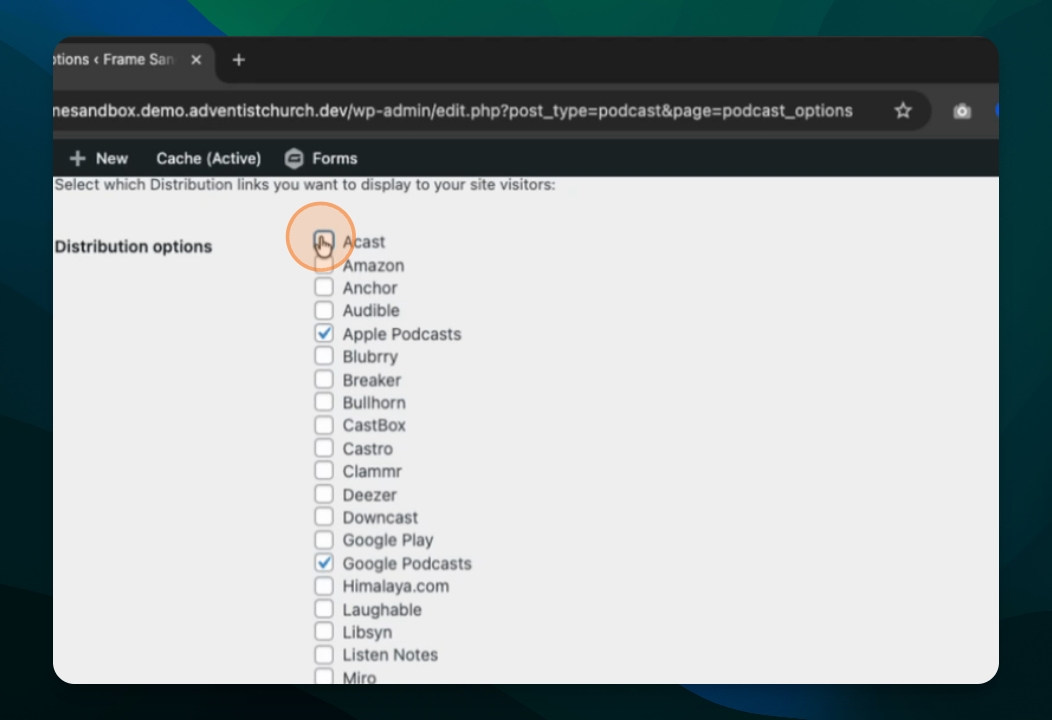
Here we're going to look at how to set up a podcast on your website using the podcasting functionality that comes with the frame website hosting for you. Let's look at the steps:
Step 1: Access Podcasting Section
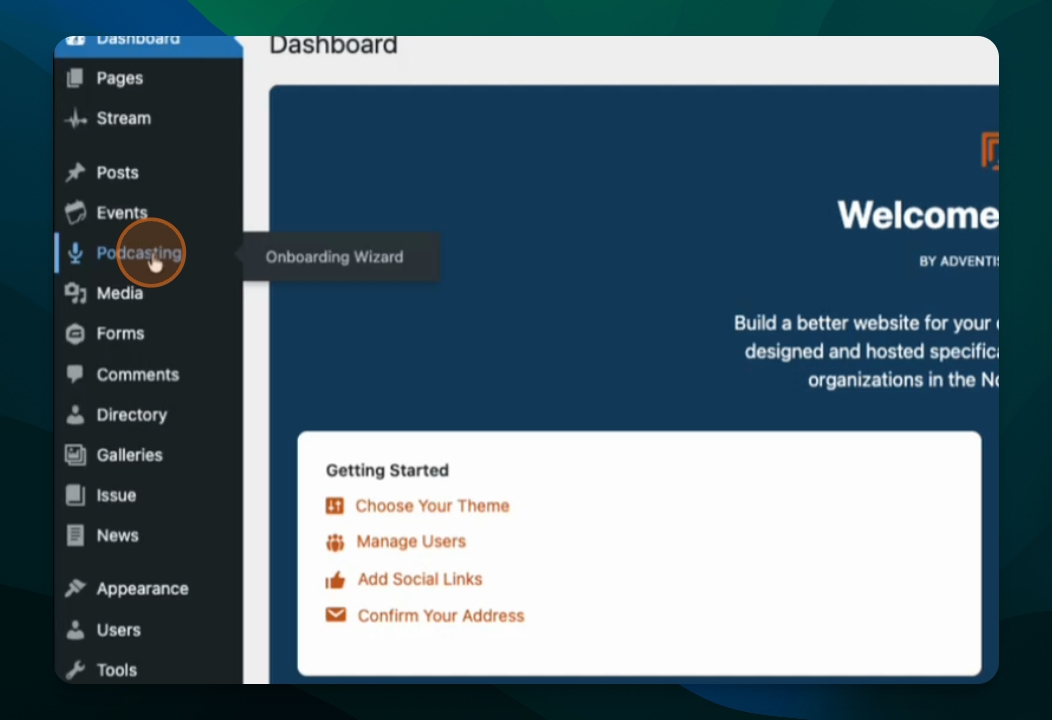
Once you're logged in, go to the Podcasting feature in the dashboard.
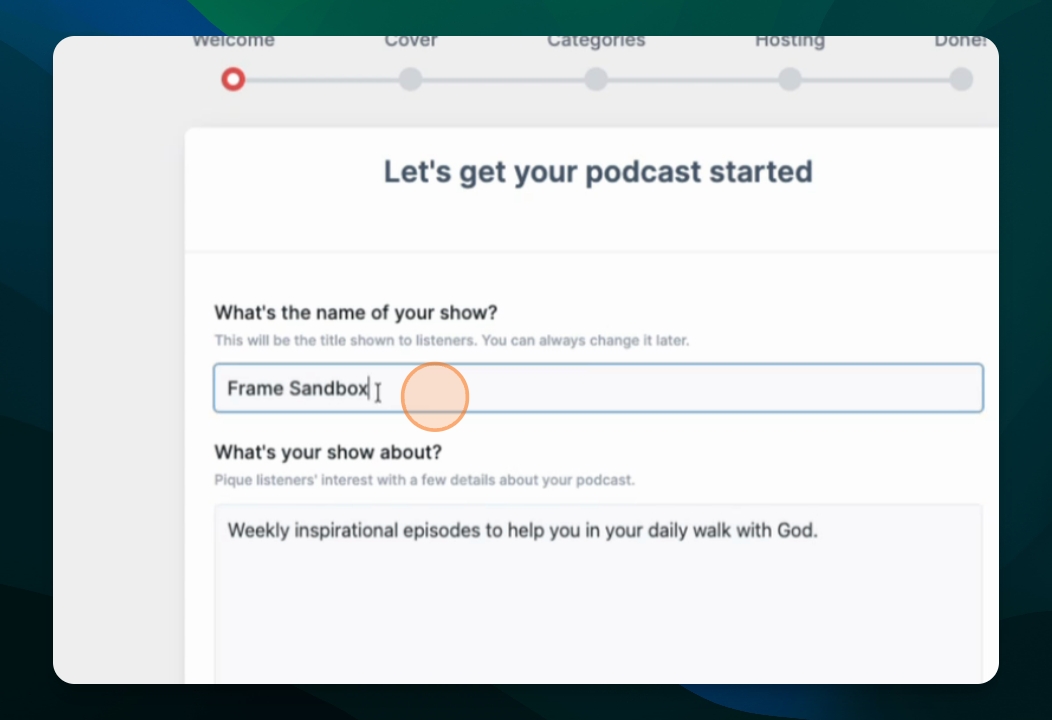
Step 2: Enter Podcast Name
Put the name of the show or podcast you want to show, then hit proceed.
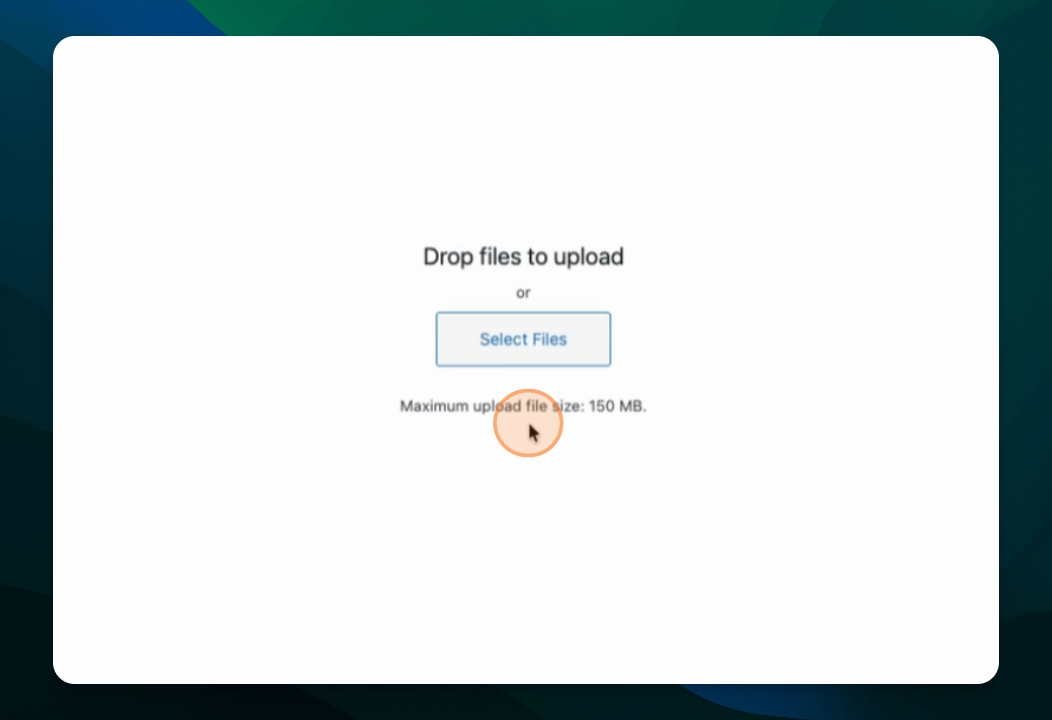
Step 3: Upload an Image
Here you can upload an image. It's highly recommended to put in an image that matches the recommended size.
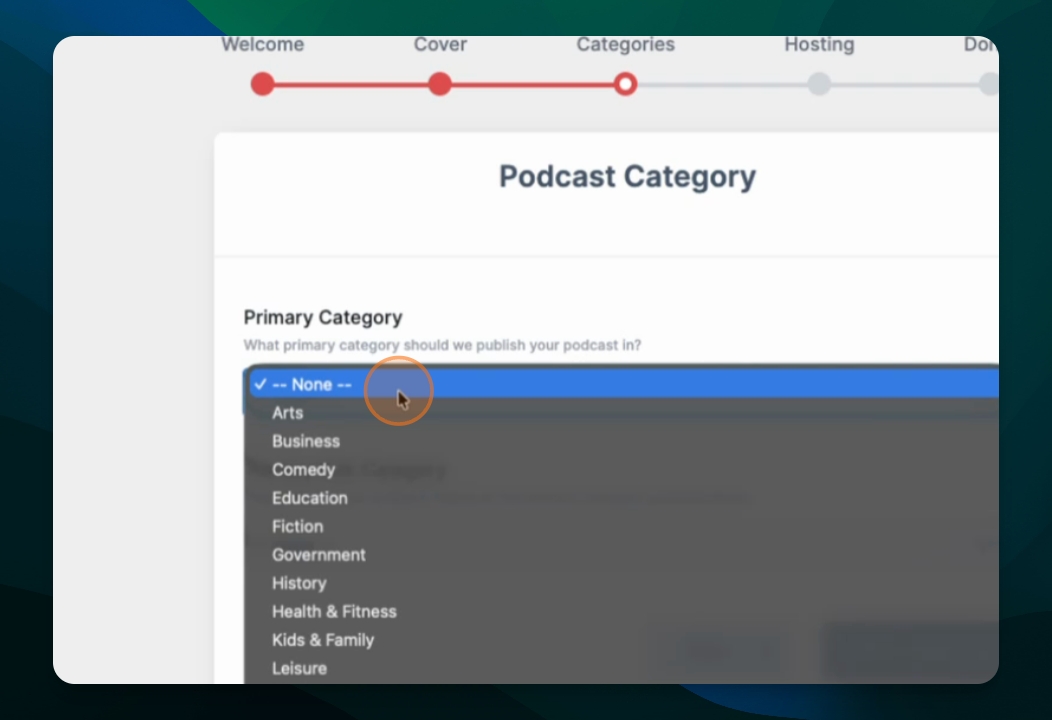
Step 4: Set Categories
Depending on your topic, create subcategories if desired and select them here. This step is optional.
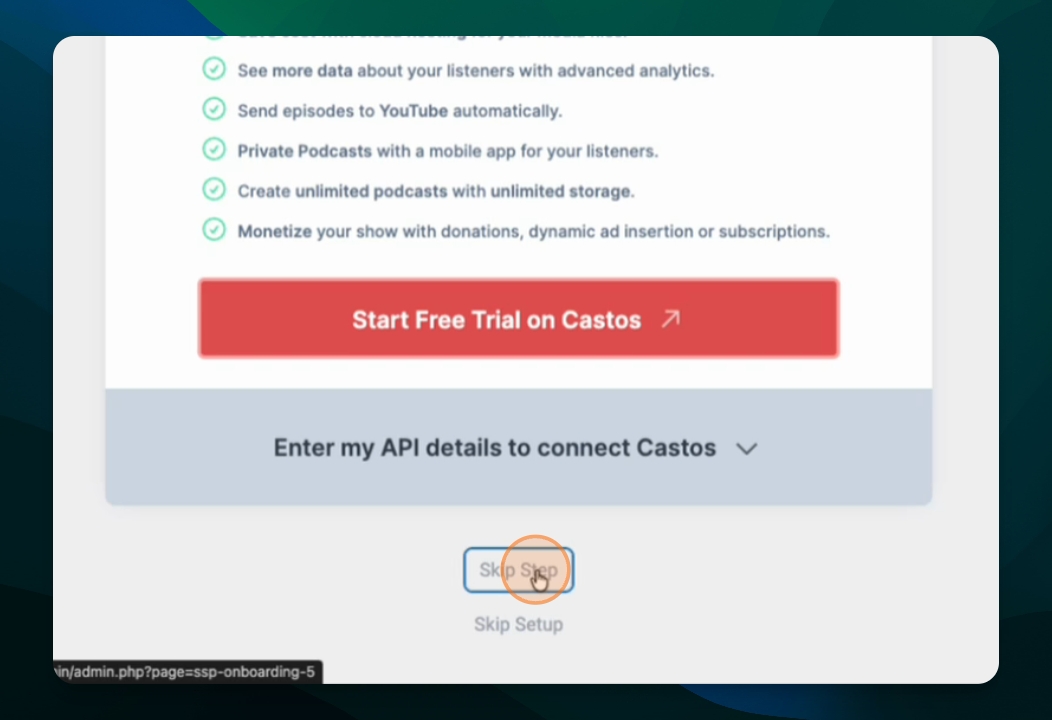
Step 5: Choose Hosting Option
You can choose to use Kastos for paid hosting, or skip that step and host it locally on your website.
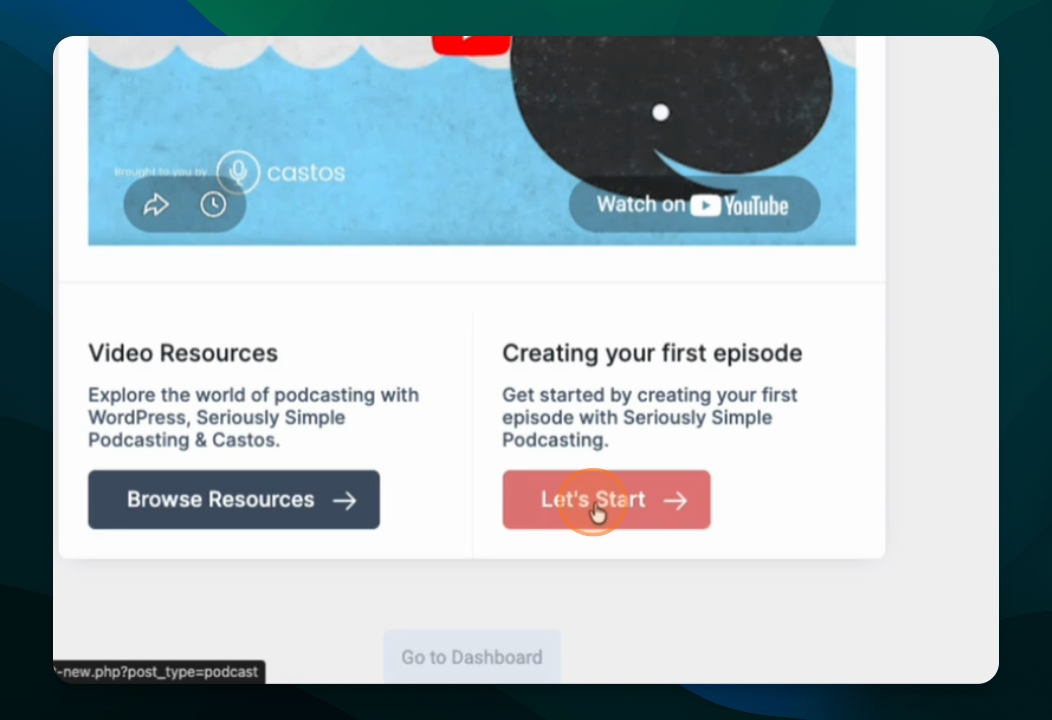
Step 6: Create Your First Episode
Click the link to create your first episode. Give it a title and include a description. Choose whether it's audio or video and upload the file.
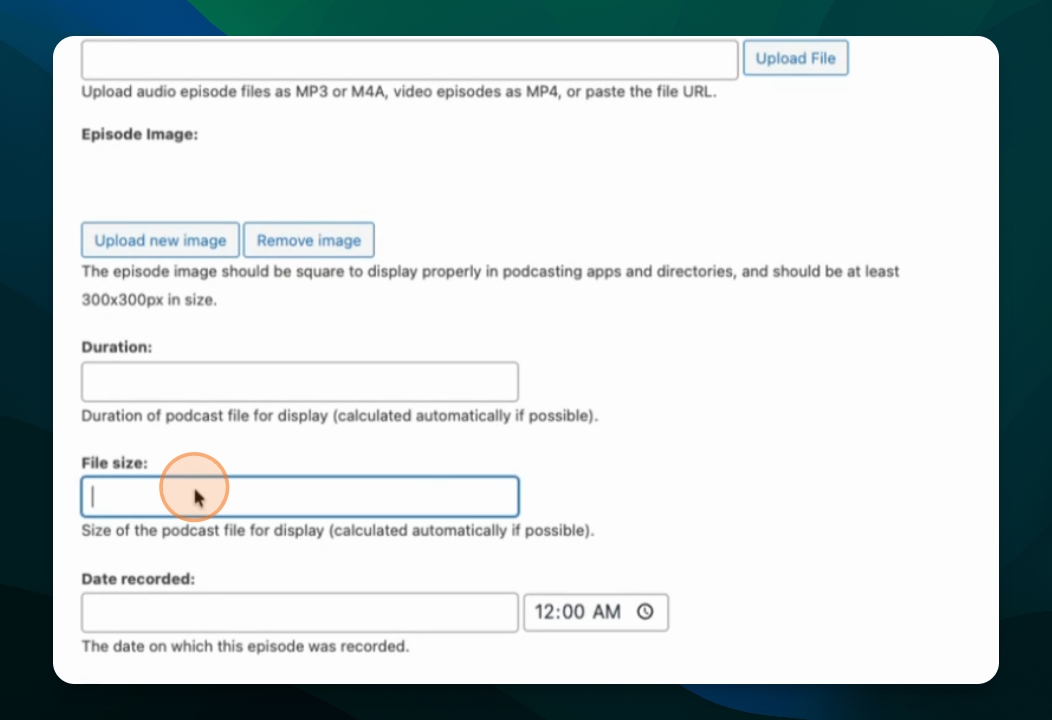
Step 7: Publish Episode
Set the episode image, duration, file size, and recording date. Then publish the episode.
Step 8: Adjust Settings
Look at the settings options within the seriously simple podcasting platform. You can adjust how the player works if desired.
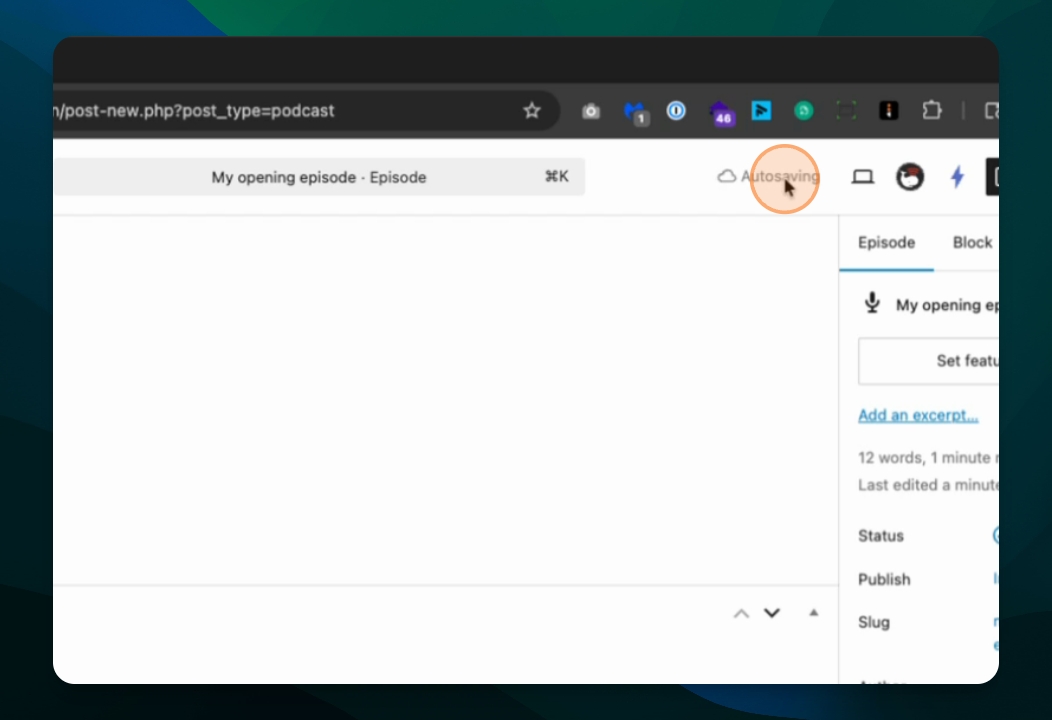
Step 9: Customize Podcast Feed
Customize the specific podcast feed and set additional categories if needed. You can skip some settings if desired.
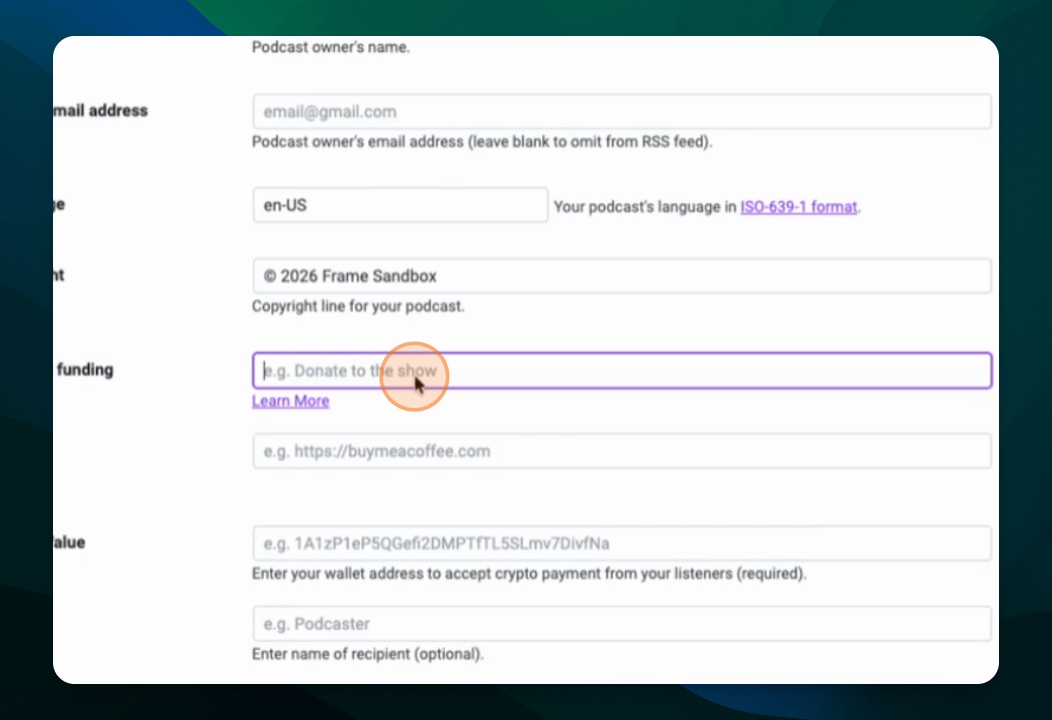
Step 10: Set Podcast URL
Set up a specific URL for your podcast on platforms like Apple Podcast, Spotify, or others under the Options tab.
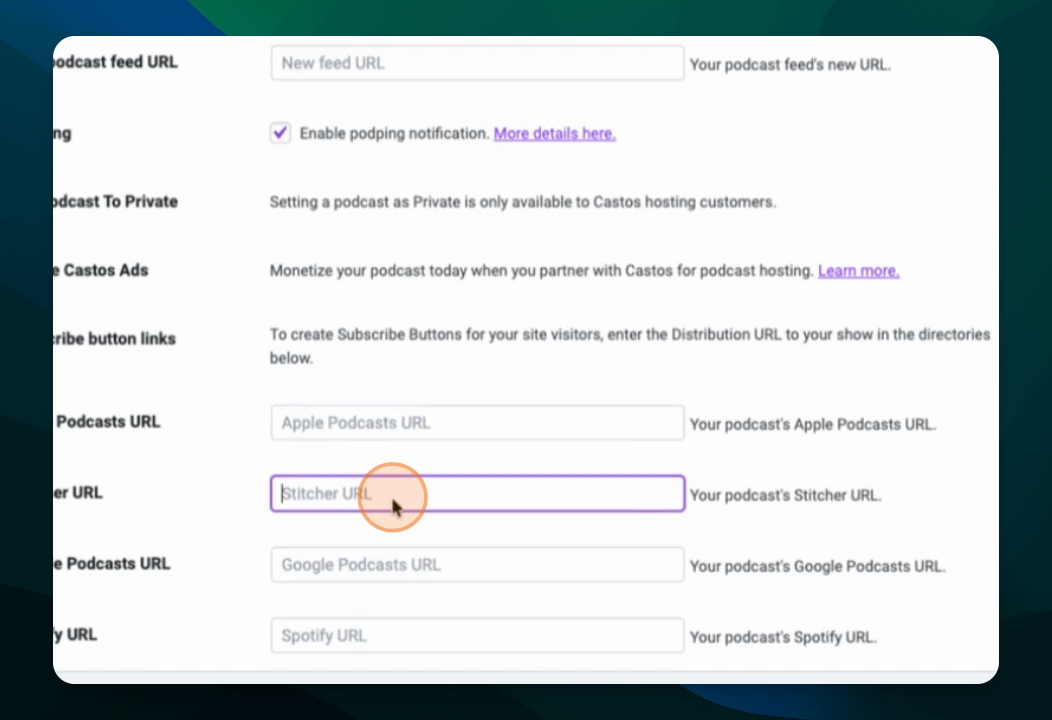
Once you have set the URLs, you can save those options and return to the settings for further adjustments.