

Evaluate Your Existing Site
Since Frame is a customized version of WordPress, migrating a WordPress site into Frame is usually pretty straightforward. Nevertheless, the following aspects should be considered:
1. Does the site contain a lot of media, or is it larger in size?
A common site might have an average of 200 images, and between 3 and 10 videos on common pages. If your site has more images, the migration process may take longer, but it is still possible. However, if your site has a large catalog of videos, such as long recorded sermons, the site may be migrated, but the videos will need to be hosted and linked from alternative platforms such as Vimeo, YouTube, or others. Review the following guide for how to upload videos to your website.
2. Is the site using custom post types?
Custom post types are an advanced feature in WordPress. However, most custom post types will seamlessly transfer into one of Frame's existing post types as they are customized for ministry use. For example, if the intent is to create a directory, good news: in Frame, there is a directory section. If your site includes an entire section for managing specific posts, Frame has News and Issues post types.
When reviewing your site's current custom post types, feel free to raise your questions to Frame about if they will easily transfer; we will be happy to assist you. Many common site features are already integrated in Frame and rapidly expanding.
3. Does the site use a large number of plugins? (Cookie consent, Elementor, Cache, etc.)
Most internal functional plugins, such as those that speed up the site through caching, improve security, and more, are not necessary in Frame, as it already has solutions in place. Layout and design plugins such as Elementor are not supported, as Frame uses Gutenberg blocks and ensures a consistent look and feel across the themes offered, including responsive design. Thus, pages and posts may need to be adjusted after migration.
Again, please reach out to Adventist Connect if you are concerned the functionality of your current plugins way not migrate into Frame.Though we don't allow site administrators to install plugins, most of the functionality desired for a site is already implemented, and we welcome adding new features that aren't already covered by the platform.
4. Does the site have a custom theme?
Frame offers a set of custom themes to maintain a design line across NAD sites. Thus, we don't allow site administrators to install custom themes. However, Frame themes can be highly customized. You may explore more on Design & Themes.
If you are not sure about how some existing functionality or aspect of your site may translate to Frame, please contact us; we will be happy to assist you.
If you haven't found any issues with the previous questions, you may continue with the following steps on exporting your site.
How to Export Your Site
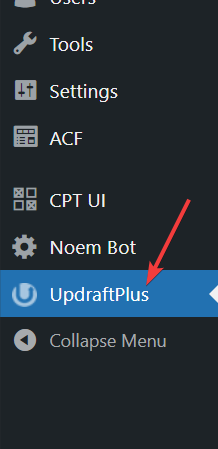
Step 1: Install UpdraftPlus Plugin
First, install the plugin UpdraftPlus in your existing site. It will generate multiple ".zip" files containing the site's different parts, which can later be uploaded to the new Frame site.
Step 2: Start New Backup
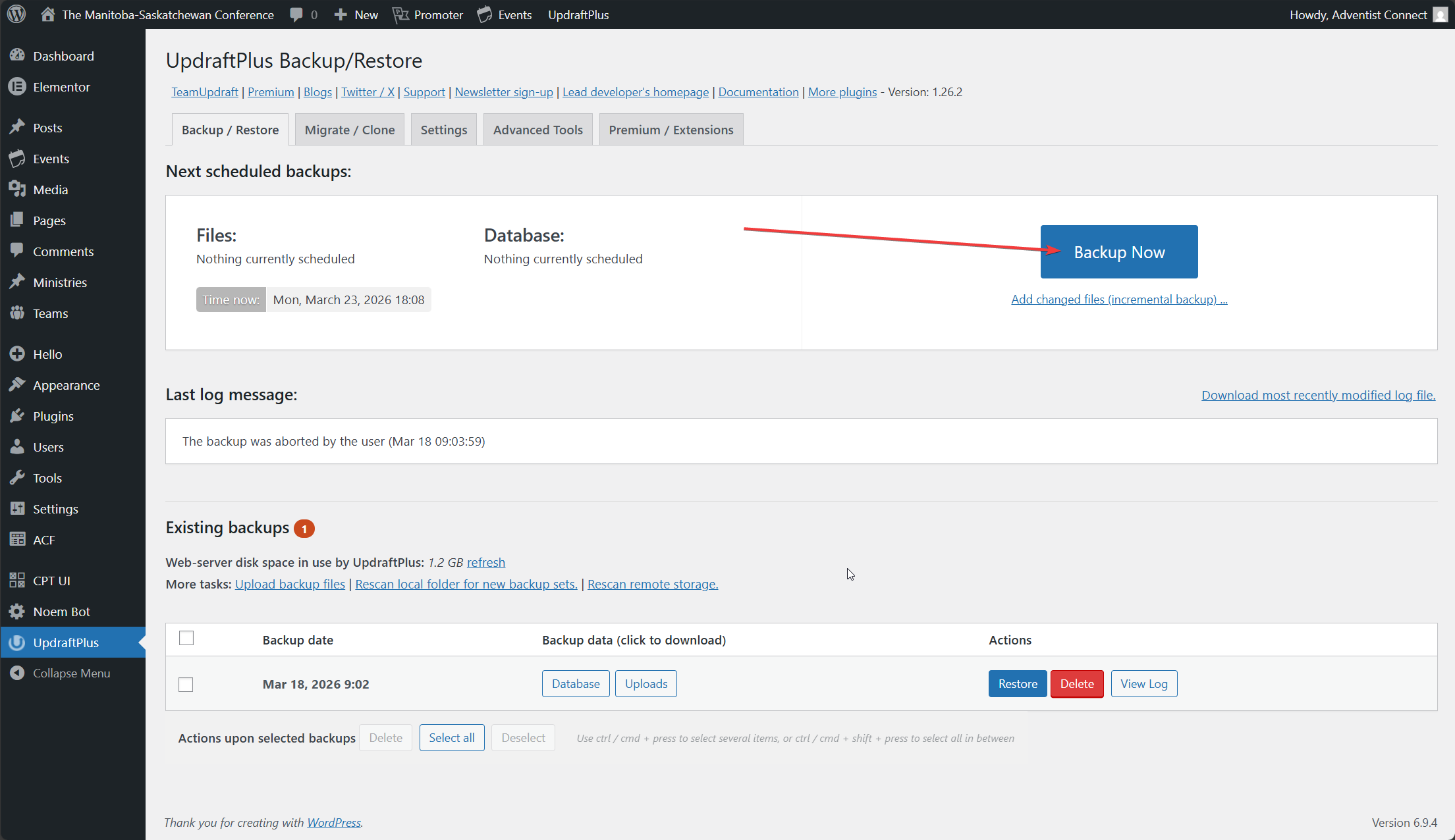
Next, navigate to the UpdraftPlus Backup/Restore page and click on "Backup Now" to open the new backup window.
Step 3: Only Backup Uploads
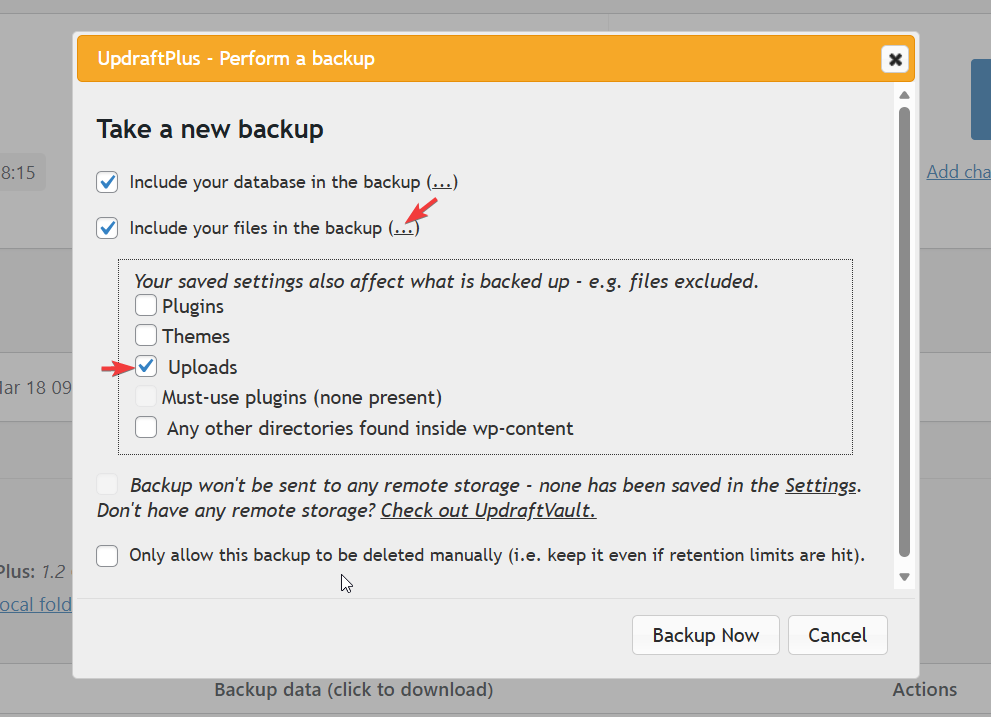
Since we only need the media files from your site, uncheck other file types. To do this, click the three dots next to the second item, "Include your files in the backup (...)". Then uncheck plugins, themes, and other directories found inside wp-content.
Your selected options should look like those shown below.
Step 4: Start Backup
Select Backup Now to begin the backup process.
Step 5: Download Backup
Once the backup is complete, it will appear in the "existing backups" section of the same page. Next, download those ".zip" files by clicking them, then selecting the "Download to your computer" button.
Be sure to download both the database and the uploads by selecting each invidivually.
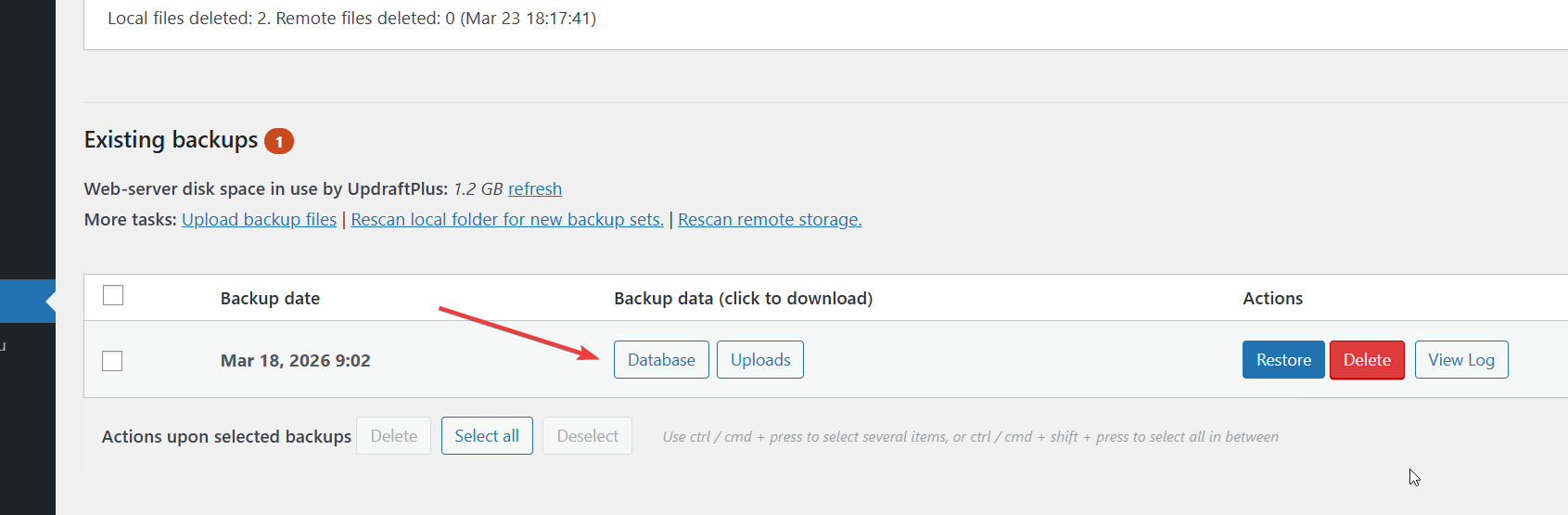
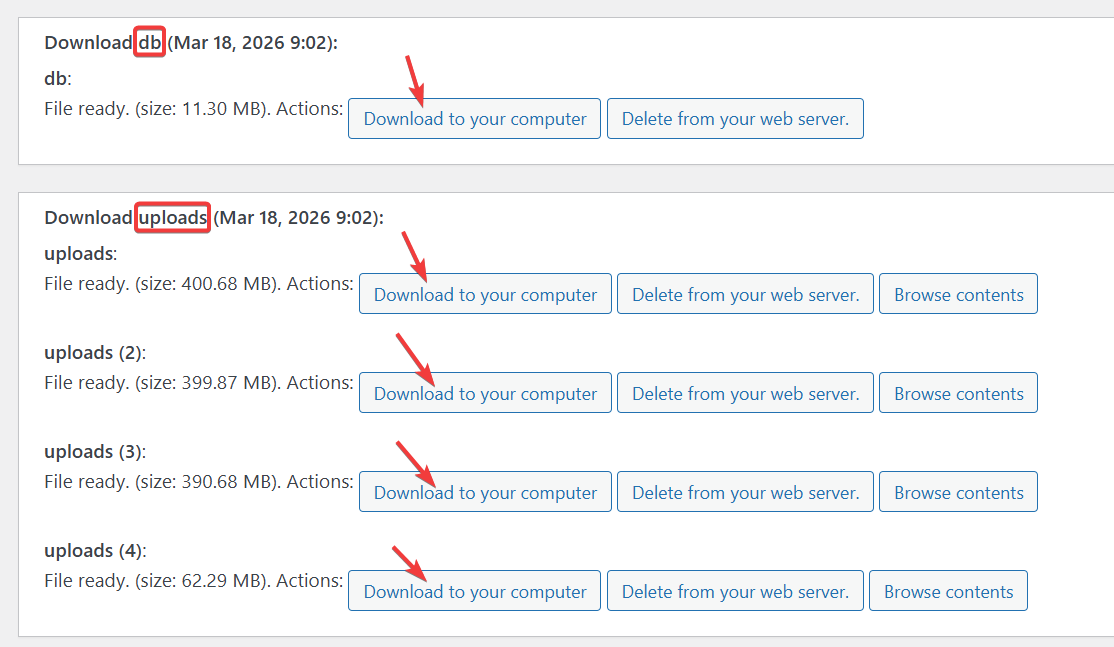
The downloaded files, which can be multiple, contain your site's database and uploaded files.

Step 6: Share Files with Adventist Connect
Share the compressed files (.zip) with us. You can send them to our email address: support@adventistconnect.org. We will then upload and import them to your new Frame site for you to continue the migration process.