

Managing User Accounts
Each person who needs access to your Frame site should have their own user account. Avoid sharing one login between multiple people.
Separate user accounts make it easier to manage access, assign the correct permissions, and remove access when someone no longer needs it.
To manage users, go to:
Dashboard → Users
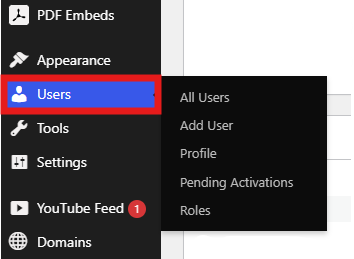
From the Users area, you can add new users, edit existing users, update roles, and remove users from the site.
Adding a New User
To add a new user, go to:
Dashboard → Users → Add New User
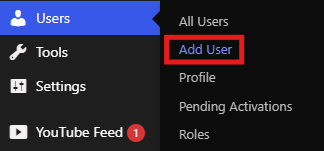
When adding a user, enter the required account information and choose the correct role for that person.
Before creating the account, make sure the user needs access to the Frame site and that their role matches the work they need to do.
Use the Correct User Role
User roles control what each person can access and manage on your Frame site.
When adding or editing a user, assign the lowest level of access they need to complete their work. Not every user needs Administrator access.
Limiting permissions helps protect the site if an account is ever compromised. Administrator access should only be given to trusted users who need to manage important site settings, users, or advanced tools.
Password Best Practices
Strong passwords help protect Frame accounts and reduce the risk of unauthorized access.
When creating or updating a user account, Frame can generate a secure password automatically. We recommend using the generated password whenever possible because it is long, randomized, and difficult to guess.
Frame also includes a password strength indicator that rates the password as:
Very Weak — red
Weak — light red
Medium — yellow
Strong — green
For best security, use a password that receives a Strong rating.
Recommended Password Managers
We recommend using a trusted password manager to generate, store, and manage secure passwords.
Password managers make it easier to use long, random, and unique passwords for every account without needing to memorize them.
Recommended password managers include:
Using a password manager also helps prevent password reuse across multiple websites. This is important because if one account is compromised, reused passwords can put other accounts at risk.
Password Length and Format
Passwords should prioritize length and uniqueness over complicated character rules.
A password should be at least 8 characters, with a strong preference for 15 or more characters.
Avoid predictable passwords such as:
Password123!
Admin2026
Welcome1
Frame123
Even though these passwords include uppercase letters, numbers, or symbols, they are still predictable and easier to guess.
For best security, use a password manager to generate a unique password for each Frame account and make sure the password receives a Strong rating.
Do Not Share Passwords
Passwords should not be shared through email, text messages, chat, or shared documents.
If another person needs access to your Frame site, create a separate user account for them instead of sharing an existing login.
Shared logins make it harder to manage access and can increase security risks. Each user should have their own account with the correct role assigned.
Removing User Access
If a user no longer needs access to your Frame site, remove their account or change their role.
Leaving unused accounts active can create unnecessary security risks, especially if the account uses an old password or belongs to someone who no longer works with your organization.
To manage an existing user, go to:
Dashboard → Users → All Users
From there, you can edit the user’s role, update account information, or remove the user from the site.
Change Passwords When Needed
Passwords do not need to be changed on a routine schedule unless there is a reason to believe the password is no longer secure.
Change a password if:
The password was shared accidentally
The account may have been accessed by someone else
The same password was used on another website that had a breach
A user no longer needs access to the site
The password is weak, reused, or easy to guess
If you are unsure whether an account is secure, update the password and review the user’s role.
Account Security Checklist
Use this checklist to help keep your Frame site secure:
Give each person their own user account
Use the lowest role needed for each user
Avoid giving Administrator access unless necessary
Use strong, unique passwords
Use a trusted password manager
Do not share passwords
Remove users who no longer need access
Update passwords when there is a security concern
Good account security starts with separate user accounts, strong passwords, and limited permissions.
Where do I manage users in Frame?
User accounts are managed from the dashboard. Go to:
Dashboard → Users
From there, you can add, edit, or remove users.
Should every user have their own account?
Yes. Each person should have their own account. Avoid sharing one login between multiple people.
Should I give users Administrator access?
Only give Administrator access when it is necessary. Most users should have a lower role based on what they need to do.
Should I use the password generated by Frame?
Yes. The generated password is usually long, random, and more secure than a password created manually.
Can I use the same password for multiple Frame accounts?
No. Each account should use a unique password. Reusing passwords can put multiple accounts at risk if one password is compromised.
Do I need a password manager?
A password manager is strongly recommended. It helps you create and store strong, unique passwords for every account.
Should users share one login?
No. If someone needs access to Frame, create a separate user account for them.